Clock in and clock out
A captain starts and ends their own shift from the My shift card on their Overview. When they clock out, the shift waits for a manager, who checks it on Shift & Cash Control and closes it. If the captain was holding a cash drawer, the manager counts the drawer as part of closing the shift.
For the captain
-
On your Overview, find the My shift card and select Clock In.

The card now shows your shift as Open, with a Clock Out button beside it.

-
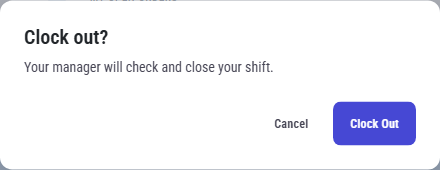
When your shift is over, select Clock Out. A window asks Clock out?. Select Clock Out again to confirm, or Cancel to keep working.
-
The card changes to Clocked out and says "Clocked out — waiting for your manager to close your shift." There is no Clock In button until your manager has closed the shift.

If you are holding a cash drawer, the card also says so while your shift is running. You still clock out yourself. Your manager counts the drawer when they close your shift.

For the manager
Everything happens on Operations ▸ Shift & Cash Control. Each person's shift has its own row, with its state on the left and what you can do on the right. The line under the heading counts the shifts running and the shifts clocked out and waiting for you.
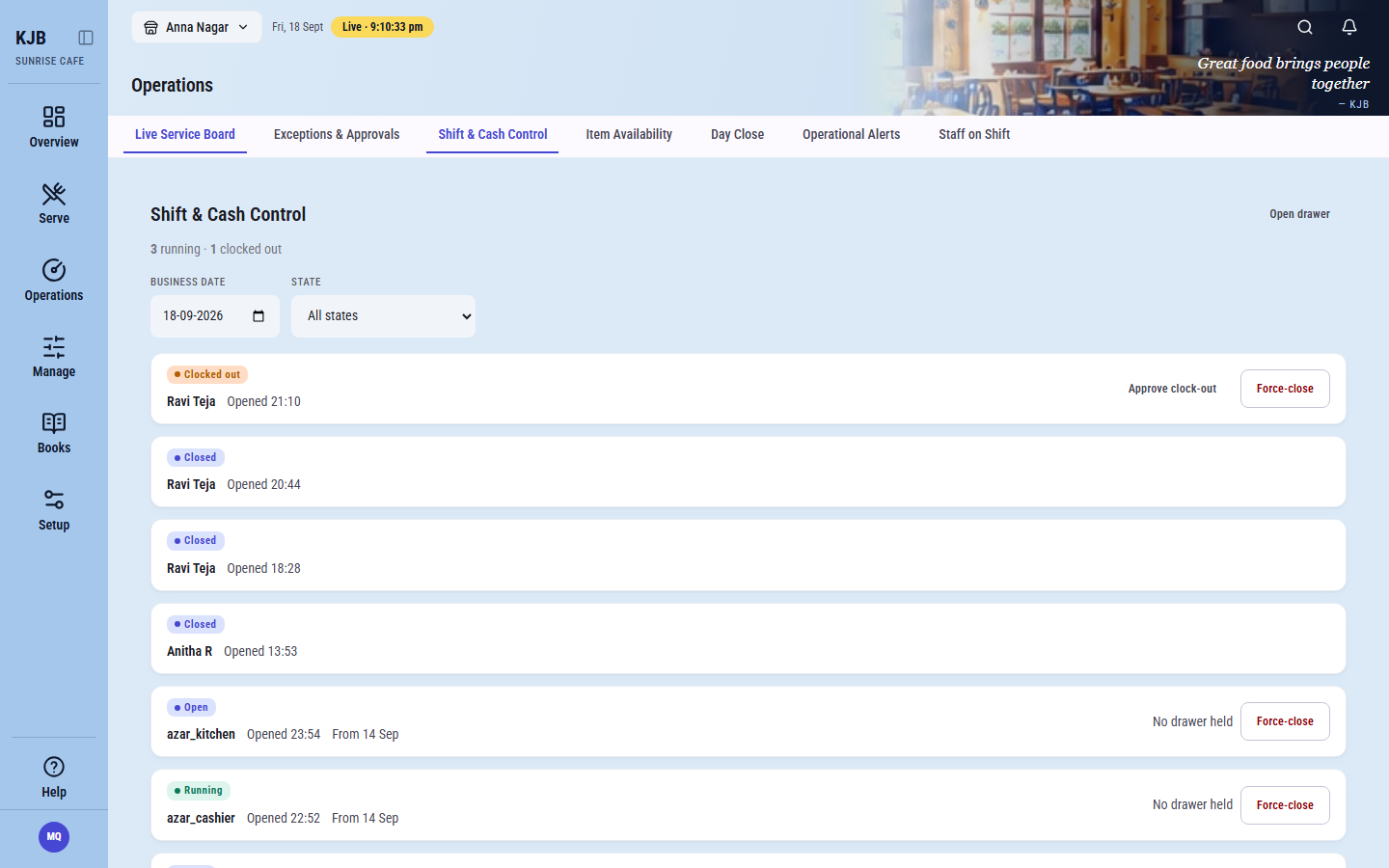
A shift that started on an earlier day and is still not finished stays on the list, marked with the day it started, for example From 14 Sep. Close it the same way as any other.
When the captain holds no drawer
-
The captain's row shows Clocked out and an Approve clock-out button.

-
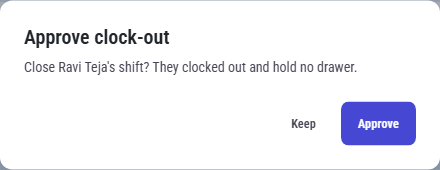
Select Approve clock-out. The window names the person and says they hold no drawer. Select Approve.
-
The row shows Closed.

When the captain holds a drawer
At the start of the shift
-
After the captain clocks in, their row shows Open and No drawer held.

-
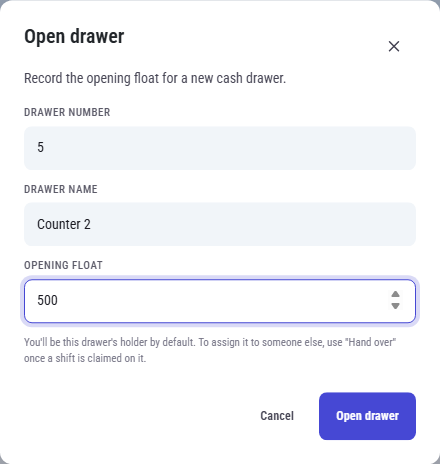
Select Open drawer at the top right. Enter a Drawer number, a Drawer name and the Opening float, which is the cash the drawer starts with. Then select Open drawer. You hold the new drawer until you hand it over.

-
On the drawer's row, select Hand over. In Hand over to (user ID), enter the captain's user ID. Count the drawer and enter what you find: Declared cash, Declared card, Declared online / UPI and Declared on account. Select Confirm hand over.
The count is blind: the window does not show what the drawer should hold, so you enter what is really there.
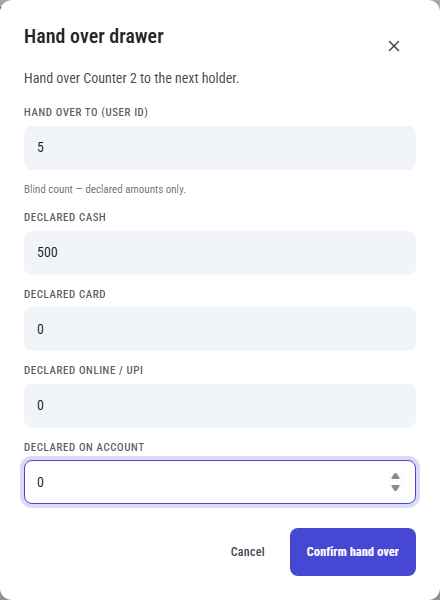
The captain's row now shows Running, with Close & count among its buttons.

-
On the drawer's row, select Accept to accept the hand-over count. The window shows the difference between what was counted and what was expected. ₹0 means they match.
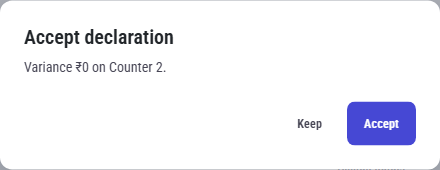
At the end of the shift
-
When the captain clocks out, their row shows Clocked out and Close & count.

-
Select Close & count. Count the drawer, enter the four amounts, and select Submit count & close. The captain's shift closes, and the drawer waits for your review.
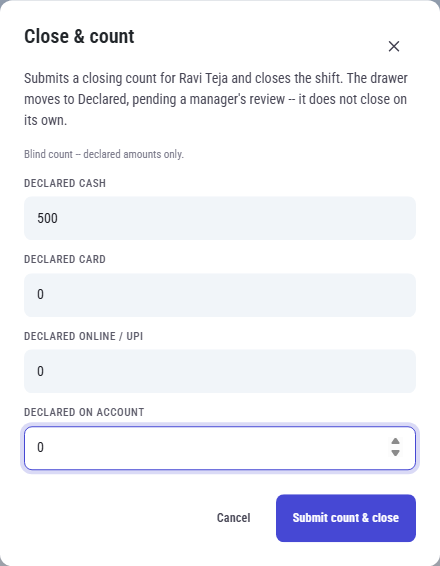

-
On the drawer's row, select Accept. If the count looks wrong, select Ask to recount instead. It asks for a reason before you can select Request recount.
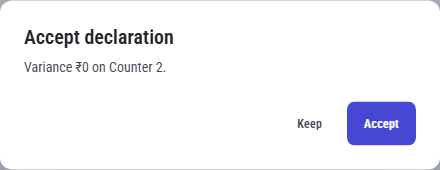
The drawer shows Reconciled and the captain's shift shows Closed.


Force-close is for abandoned shifts
Every shift that is not closed also shows Force-close. Use it only for a shift someone abandoned, such as a captain who left without clocking out. The normal end of a shift is the captain's clock-out and your approval or count, described above.
Related
- My shift — the captain's card, and what each state means
- Count and close a drawer — drawers on their own, including the Business date filter
- Shifts and cash drawers — what a shift is, what a drawer is, and why they close separately
- Close the day — open shifts and uncounted drawers hold up the day's close