Add a menu item
Quick answer
Manage ▸ Menu ▸ Create ▸ Add item ▸ fill in group, category, code, name and price ▸ check Price includes GST ▸ Create. The item appears in the list straight away.
What you'll accomplish
A new dish exists in your menu list, priced for each way you sell it.
When to use this
Use this to put something new on the menu.
To change the price of an item you already have, open it from Manage ▸ Menu Catalog instead. That screen is built for editing one item and does not create anything.
Who can do this
Managers and administrators.
Captains, cashiers, storekeepers and kitchen staff cannot add menu items. If you are one of them and need a new dish on the menu, ask a manager.
Before you begin
Decide the item's group and category. Both are picked from lists that already exist — this form does not create them. If the group or category you want isn't in the list, it has to be added before you can use it here, and not every account can reach the screens that add them. If you can't find it, ask whoever set up your KJB.
Have an item code ready. An item code is a short reference for the item, such as DOSA01. The form will not submit without one.
Know how you will sell the item — at a table, for takeaway, for delivery, or online. You will price each one you intend to use.
Steps
-
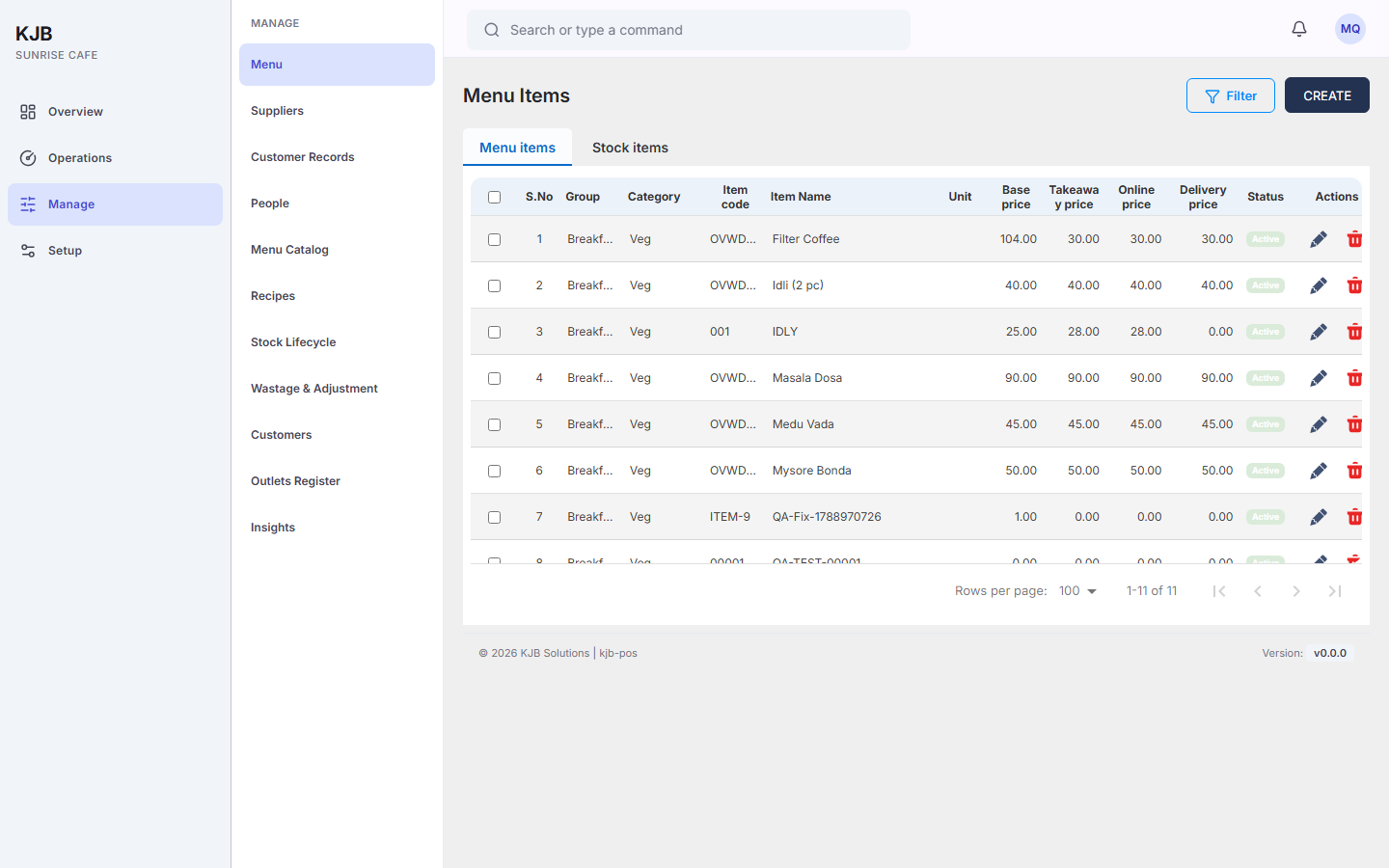
Open Manage ▸ Menu. The screen is headed Menu Items, and your existing items are listed on the Menu items tab.
 2. Select Create, then Add item. A panel opens with the item's fields.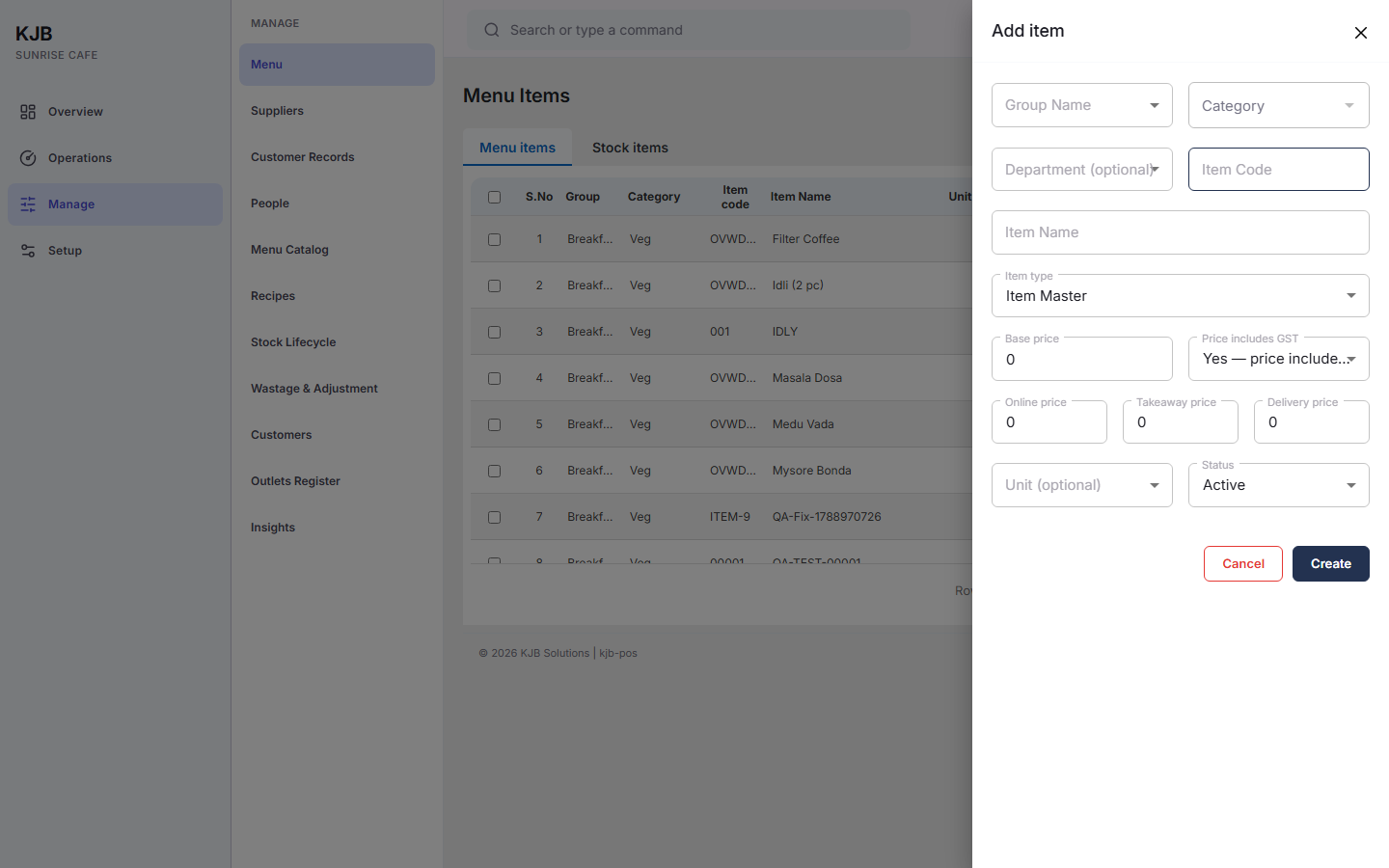
The panel's own fields, close up:
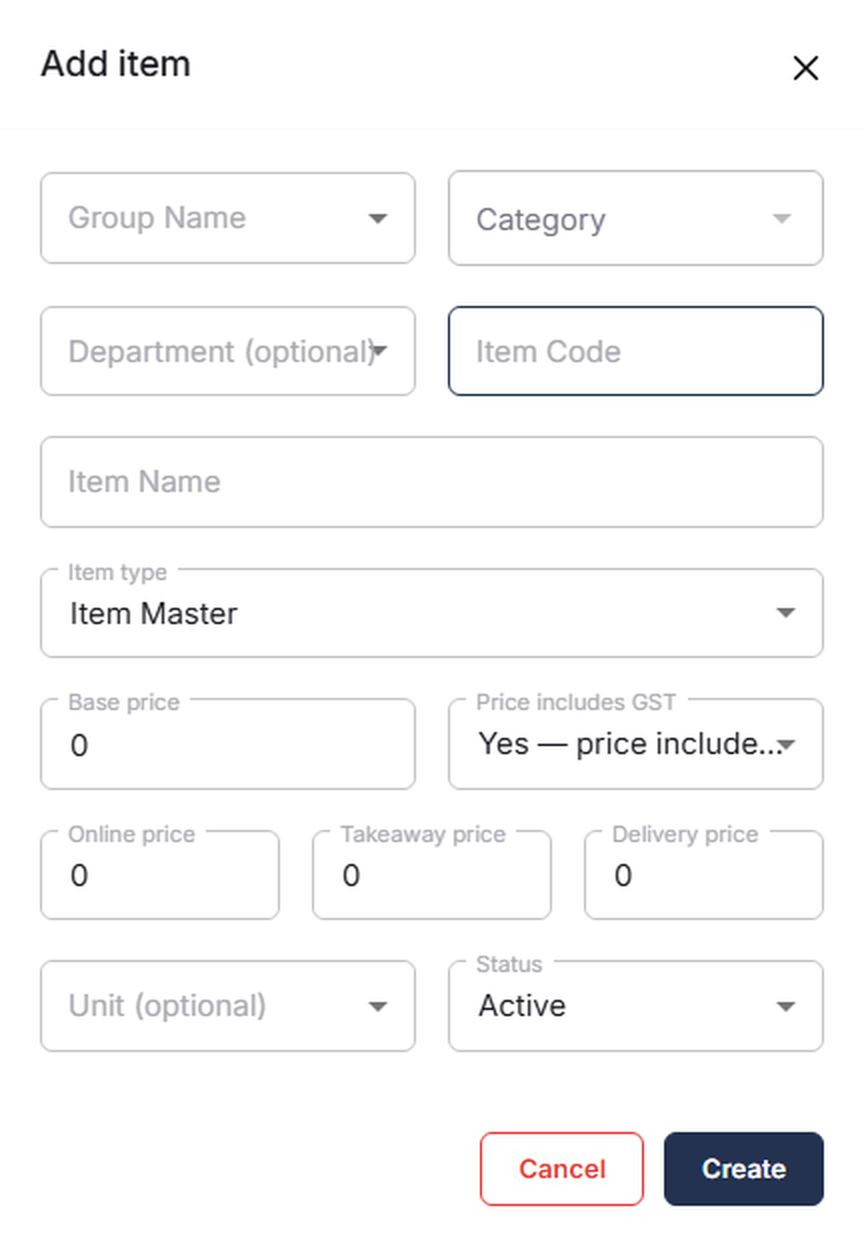 3. Choose the Group Name, then the Category. Pick the group first — the category
list stays greyed out until you do, then fills in based on your choice.
4. Enter the Item Code and the Item Name.
5. Enter the Base price — the item's main price. The three price fields further down set what
it costs when sold a different way.
6. Check Price includes GST, directly beside the base price. It is set to "Yes — price
includes GST" unless you change it, and it decides how the number you just typed is read. See the
rule below before you move on — this one is easy to miss.
7. Enter Online price, Takeaway price and Delivery price for whichever
of those you sell the item through — they appear in that order. Each is its own price; filling in one
does not fill in the others.
8. Leave Status as Active unless you want the item held back for now.
9. Select Create.
3. Choose the Group Name, then the Category. Pick the group first — the category
list stays greyed out until you do, then fills in based on your choice.
4. Enter the Item Code and the Item Name.
5. Enter the Base price — the item's main price. The three price fields further down set what
it costs when sold a different way.
6. Check Price includes GST, directly beside the base price. It is set to "Yes — price
includes GST" unless you change it, and it decides how the number you just typed is read. See the
rule below before you move on — this one is easy to miss.
7. Enter Online price, Takeaway price and Delivery price for whichever
of those you sell the item through — they appear in that order. Each is its own price; filling in one
does not fill in the others.
8. Leave Status as Active unless you want the item held back for now.
9. Select Create.
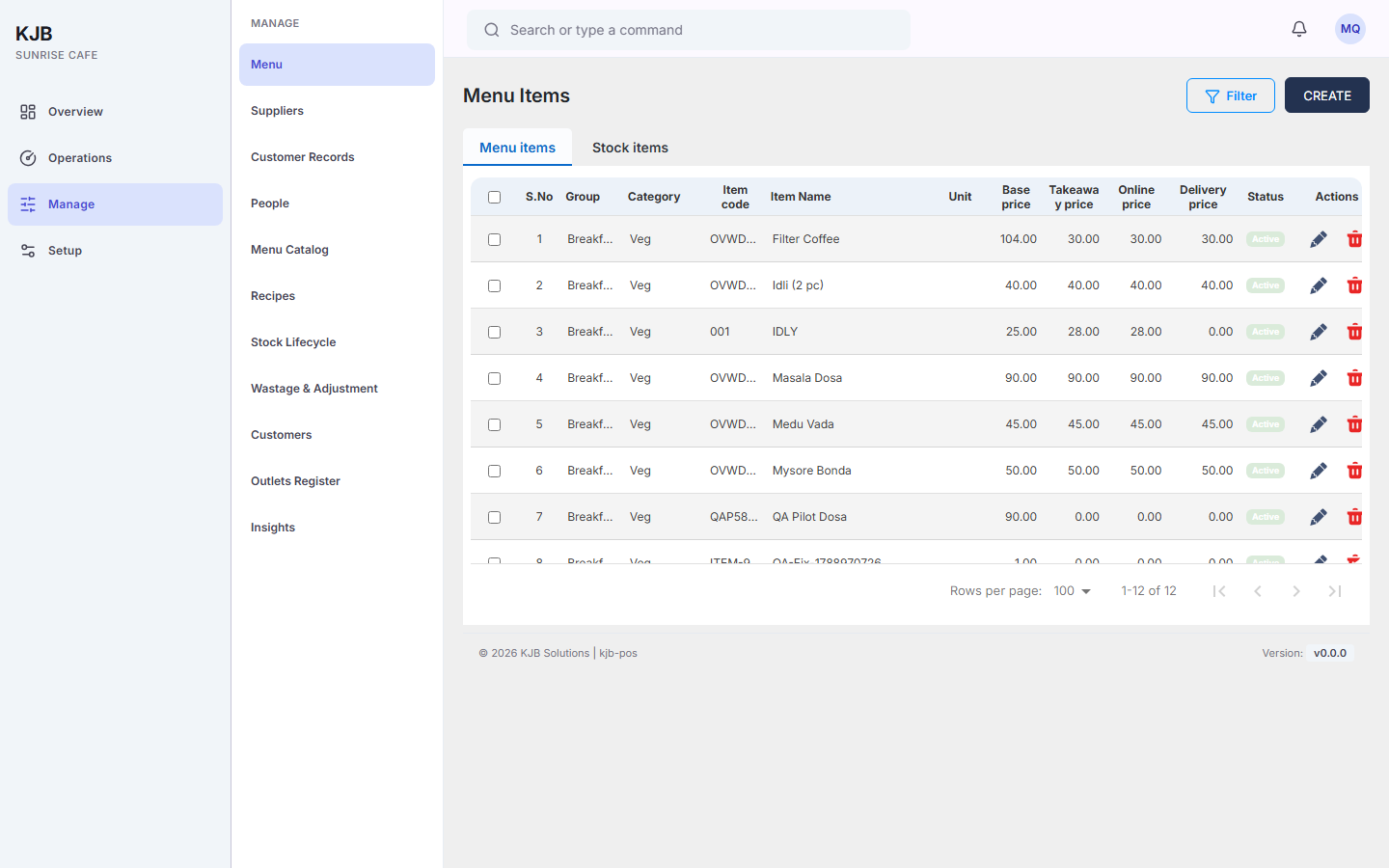
Expected result: the list refreshes, with your new item in it.
Important rules
"Price includes GST" decides whether your price is the whole price, or the price before tax. The field sits beside the base price and offers two answers:
| You choose | What you are telling KJB |
|---|---|
| Yes — price includes GST — the setting you start with | the price you typed already has tax inside it |
| No — GST added at billing | the price you typed is before tax |
Set it to match the number you just typed. If the price you entered is what you want the customer to see with tax already in it, leave it on "Yes". If your figure is before tax, change it to "No". The field starts on "Yes", so it is easy to pass over without deciding.
If you change this setting after typing a price, check the price again before saving. Changing it adjusts the base price rather than leaving it as you typed it.
Fill in a price for every way you actually sell the item. The four prices are separate fields, and setting one does not set the others. An item you sell for takeaway needs a takeaway price of its own.
Enter an item code; this form requires one. The form will not submit without a value in it. Give each item its own code.
Category depends on group. Changing the group clears the category, because the list of available categories changes with it.
If something goes wrong
The form won't submit and a field is marked. Group, category, item code and item name are all required. Fill the marked field and submit again.
You meant to sell it for takeaway, delivery or online and only filled in the base price. Open the item from Manage ▸ Menu Catalog and add the missing price — see Change a price.
Related tasks
- Menu items — what a menu item is, and how it differs from a stock item