Tally
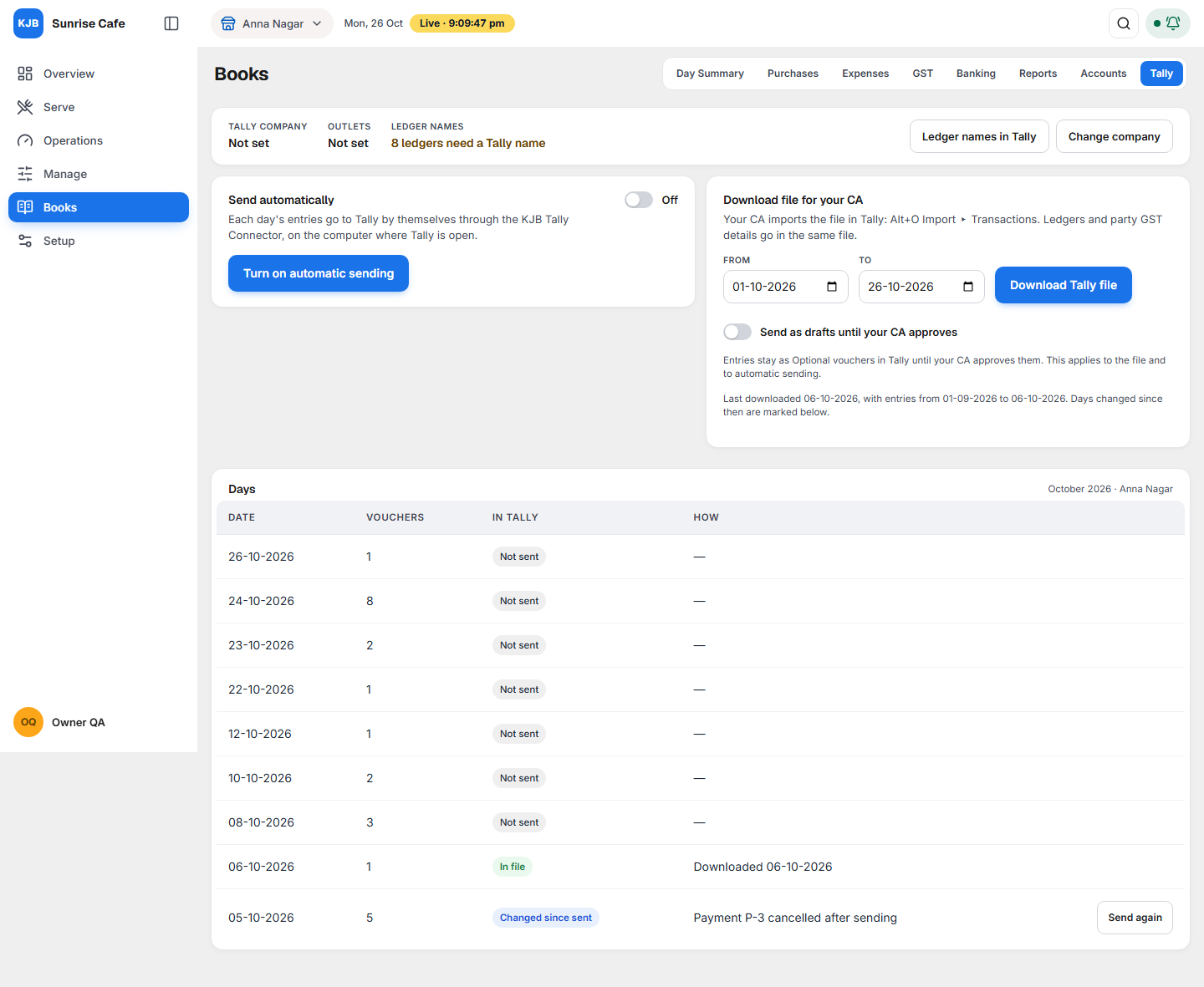
Tally sends your KJB Books entries to your CA's TallyPrime, so the CA works on the same vouchers you entered: sales, purchases, payments, expenses, receipts, contra and journal entries. Open it from Books, the Tally tab.
There are two ways to send:
- Download file for your CA — you download a file for a date range; your CA imports it into Tally.
- Send automatically — each day's entries reach Tally by themselves, through the KJB Tally Connector, a small Windows program on the computer where Tally runs.
You can use either, or both.
Why it matters for filing
For your CA: if your CA files your returns and audits your accounts from Tally, the CA needs every voucher you entered in KJB. Sending them saves the CA re-typing your bills, and keeps both sets of books the same.
For GST and income tax: what is in Tally is what the CA files from. A voucher that never reached Tally is missing from the CA's GST return and from your profit. The Days list shows, day by day, what Tally has, so nothing is left out without you seeing it.
Before you send: set up once
1. The Tally company
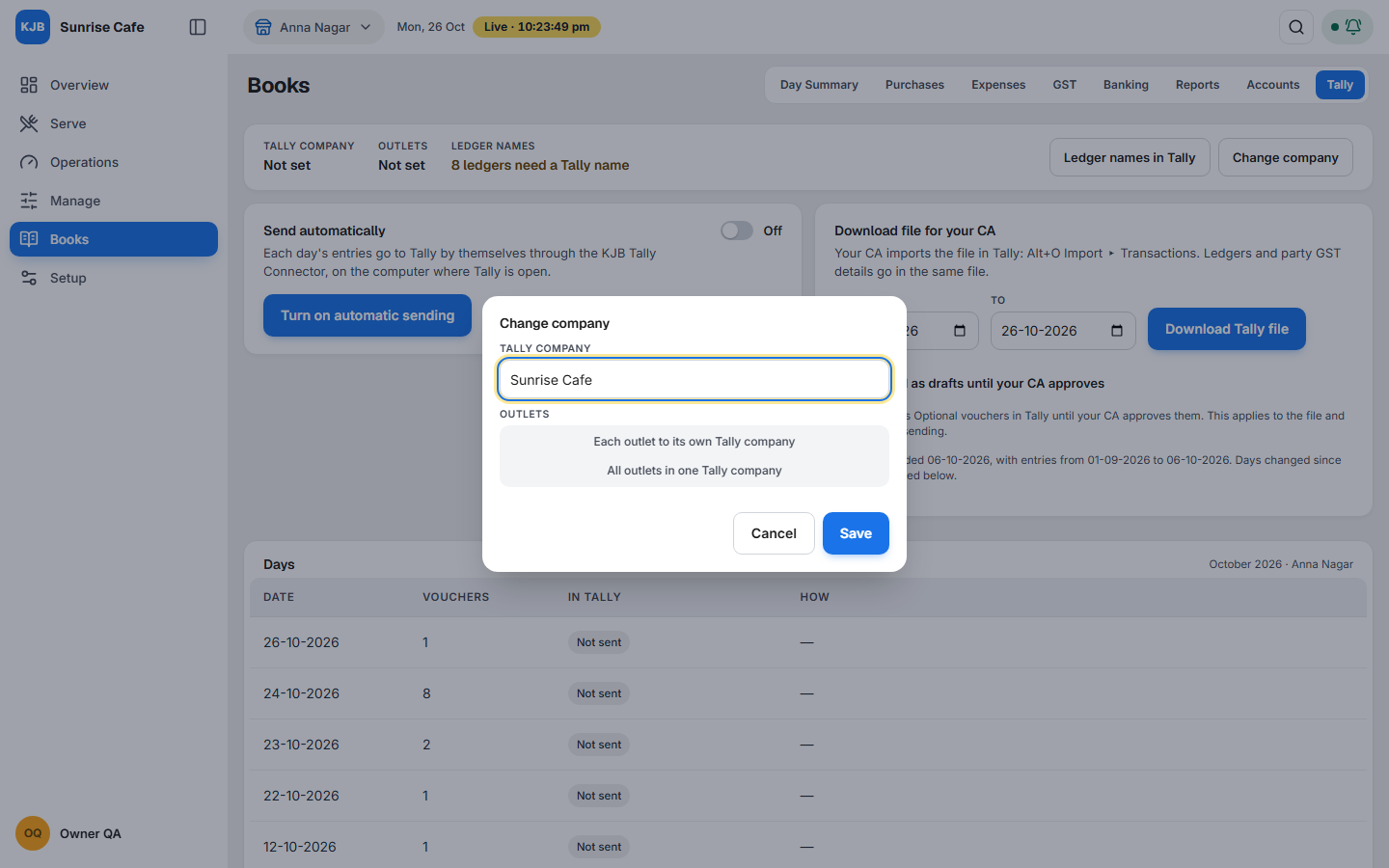
At the top of the tab, Tally company is the company in your CA's Tally that receives your vouchers. Choose Change company, type the company name exactly as it appears in Tally, and choose Outlets:
| Outlets | When to use it |
|---|---|
| Each outlet to its own Tally company | Your CA keeps a separate Tally company for each outlet. |
| All outlets in one Tally company | Your CA keeps all outlets in one Tally company. |
2. Ledger names
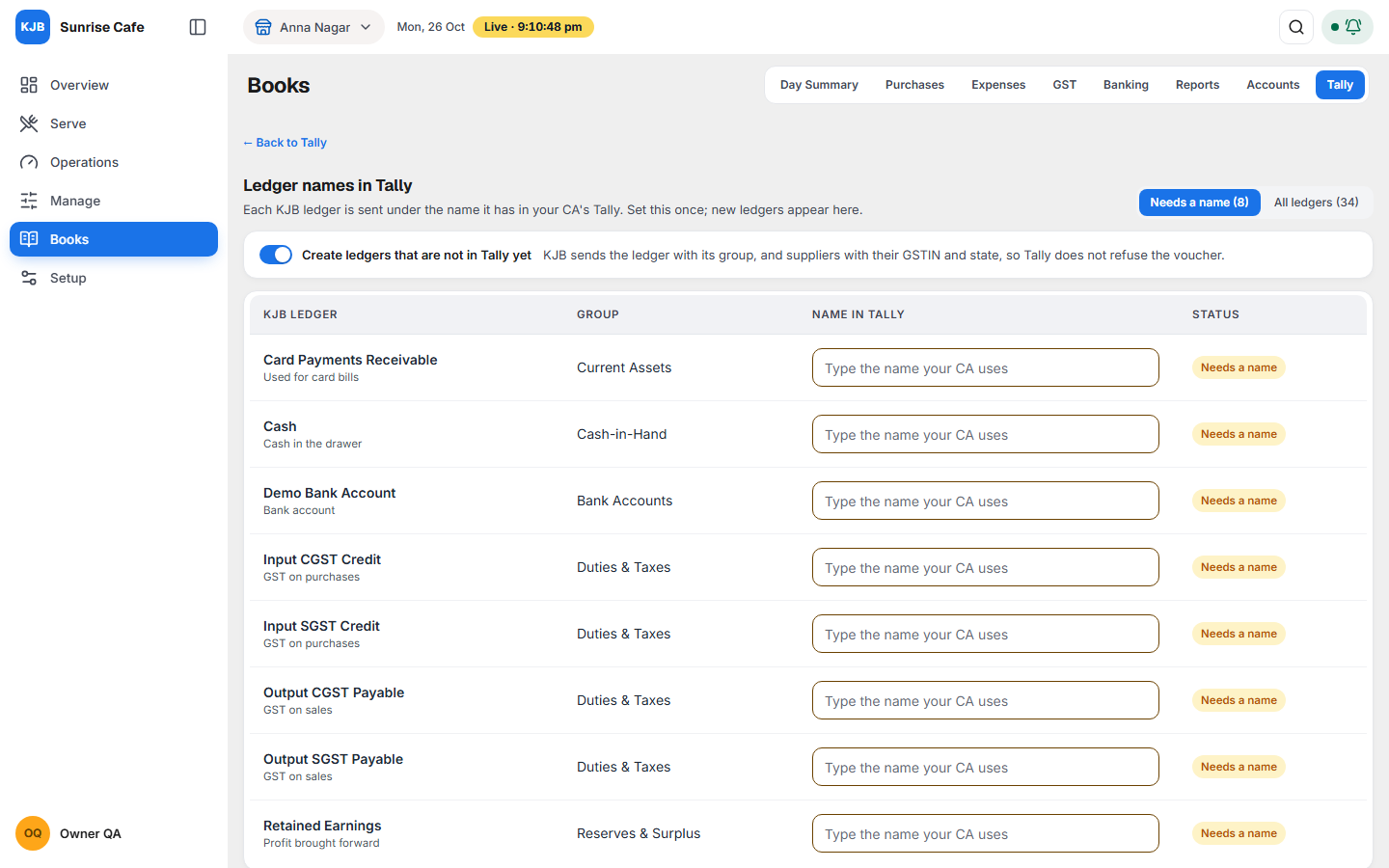
Your CA's Tally may call a ledger by a different name from KJB. For example, KJB's Output CGST Payable may be Output CGST in Tally. Choose Ledger names in Tally and set the name once; every voucher after that uses it.
Each ledger shows one of three states:
| State | What it means | What to do |
|---|---|---|
| Name set | KJB sends this ledger under the Tally name you typed. | Nothing. |
| Will be created in Tally | It is not in Tally yet. KJB creates it in Tally, in the right group, before the vouchers. A supplier is created with its GSTIN and state. | Nothing, unless your CA already has it under another name. Then type that name. |
| Needs a name | Your CA certainly has this ledger already: GST ledgers, cash, card payments, bank accounts, TDS, Retained Earnings. KJB never creates a second one, so your CA's tax and bank ledgers stay whole. | Ask your CA for the name and type it. Until then, Tally refuses vouchers that use it. |
Create ledgers that are not in Tally yet is on by default. Switch it off if your CA wants to create every ledger in Tally personally; then every ledger without a name shows Needs a name.
3. Send as drafts until your CA approves
Switch on Send as drafts until your CA approves if your CA wants to check each voucher first. Your vouchers then reach Tally as Optional vouchers: they are in Tally but do not touch the CA's books until the CA approves each one in Tally. This applies to the file and to automatic sending.
Send automatically
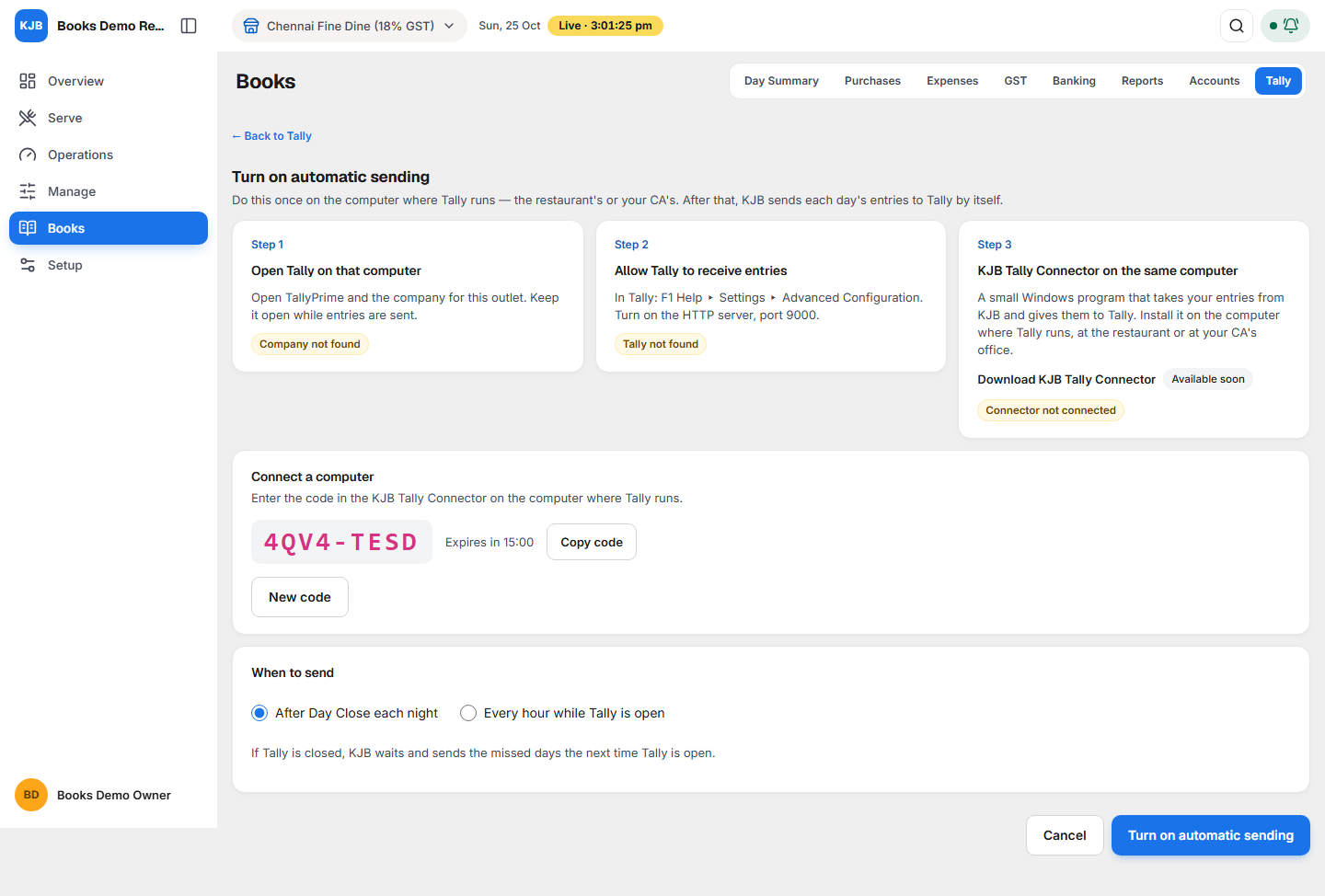
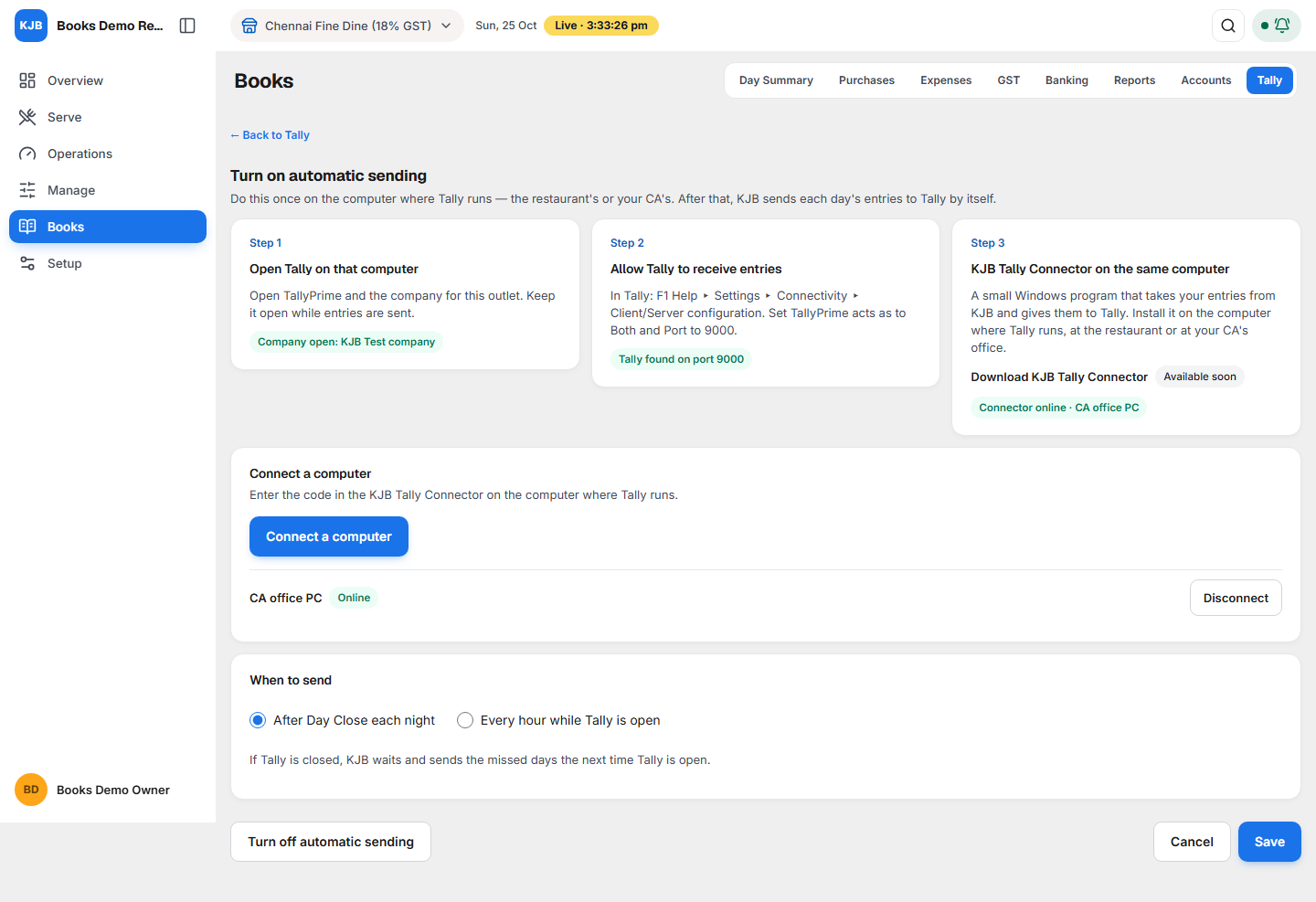
Automatic sending needs three things on the computer where Tally runs, at the restaurant or at your CA's office: TallyPrime open with the company, Tally allowed to receive entries, and the KJB Tally Connector. Choose Turn on automatic sending and follow the three steps on the screen.
Step 1 — Open Tally on that computer
Open TallyPrime and the company for this outlet. Keep it open while entries are sent.
Step 2 — Allow Tally to receive entries
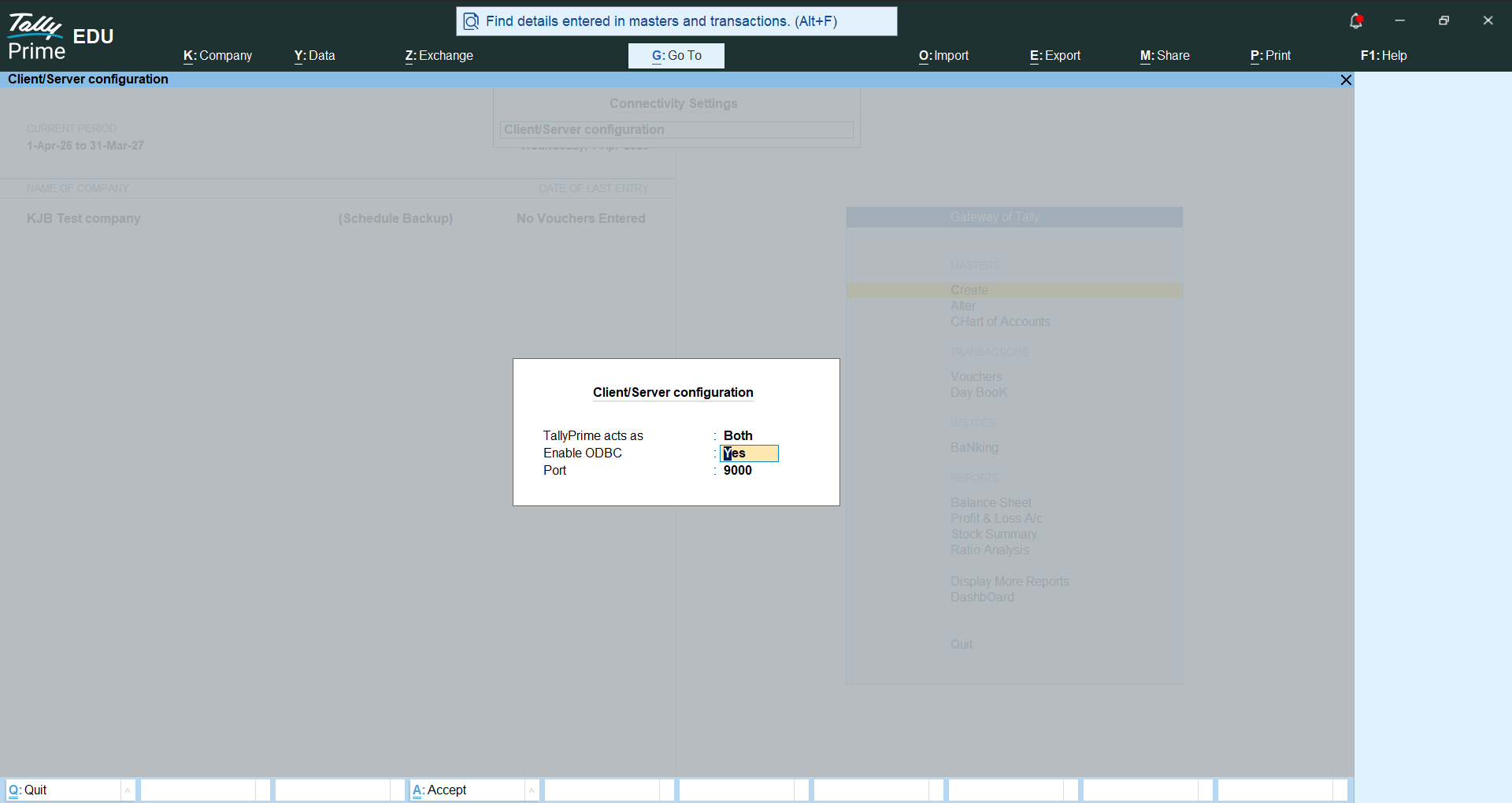
In TallyPrime: F1 Help ▸ Settings ▸ Connectivity ▸ Client/Server configuration. Set TallyPrime acts as to Both and Port to 9000, then save. Tally asks to restart; let it, and open the company again.
Step 3 — The KJB Tally Connector
The KJB Tally Connector is a small Windows program. It runs on the computer where Tally runs, takes your entries from KJB and gives them to Tally. It does not need administrator rights.
Install it
- On the KJB screen, choose Download KJB Tally Connector and open the file
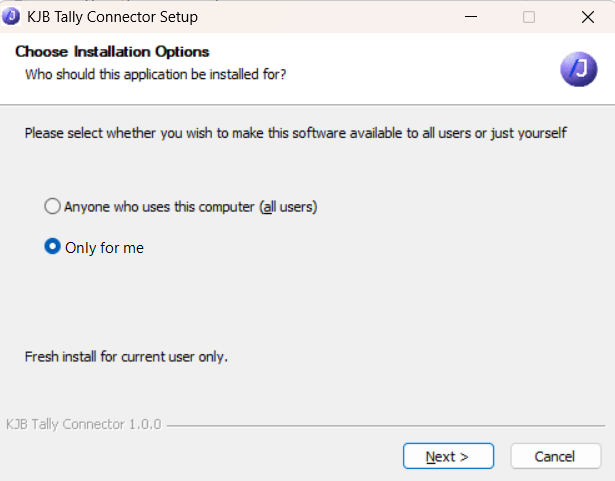
TallyConnector-Setup.exeon the computer where Tally runs. - Keep Only for me selected and choose Next.
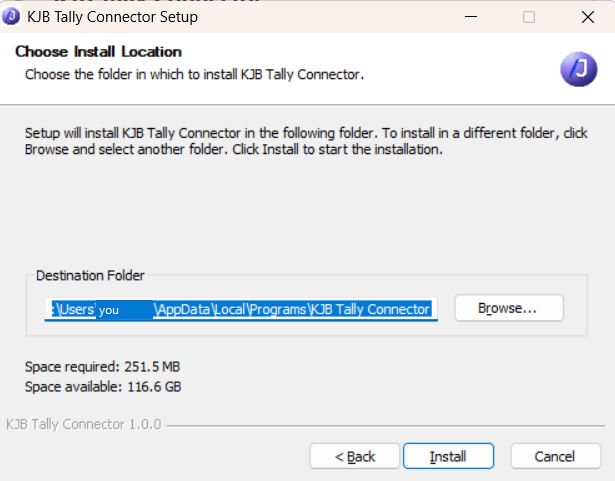
- Keep the folder it suggests and choose Install.
- Keep Run KJB Tally Connector ticked and choose Finish.
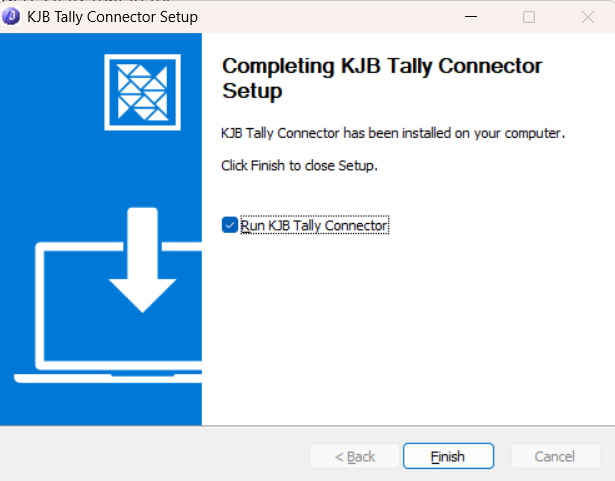
The Connector starts by itself whenever Windows starts, and sits as a small icon near the clock.
Connect it to KJB
- On the KJB screen, choose Connect a computer. KJB shows an eight-character code, valid for 15 minutes. Copy code copies it; New code gives a fresh one.
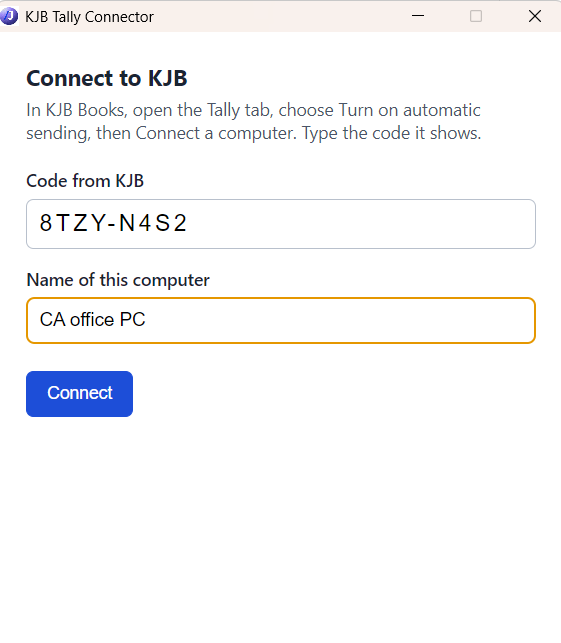
- In the Connector's Connect to KJB window, type the code into Code from KJB, give this computer a name you will recognise (for example "CA office PC") and choose Connect.
- The Connector then shows its status. All four lines are green when everything is ready:
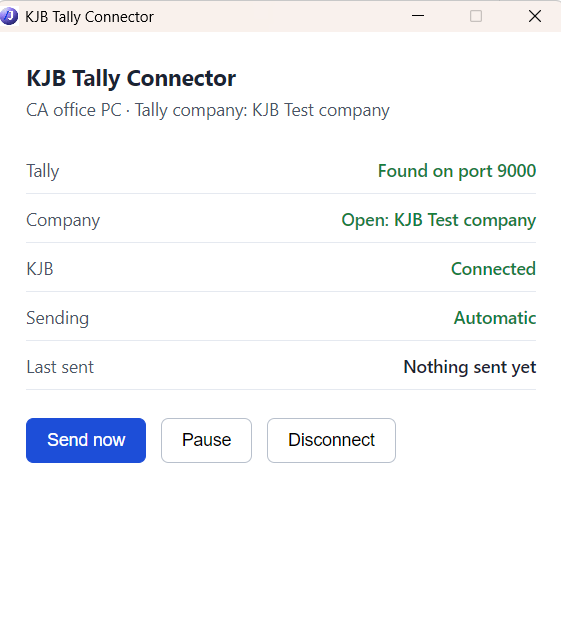
| Line | Green means | If it is not green |
|---|---|---|
| Tally | Tally was found on port 9000. | Open TallyPrime, and check Step 2. |
| Company | The Tally company set in KJB is open in Tally. | Open that company in Tally. Check that its name matches Tally company in KJB exactly. |
| KJB | The Connector can reach KJB. | Check the internet connection. |
| Sending | Automatic, or Only when you press Send now while automatic sending is off in KJB. | Paused means someone chose Pause; choose Resume. |
On the KJB screen, each step now shows a green check: the Tally company is open, Tally was found on port 9000, and the Connector is online. The computer is listed by name, with Disconnect to remove it.
Day to day
You do not need to open the Connector. To look at it, click its icon near the clock, or start KJB Tally Connector from the Start menu.
Closing the Connector's window with × does not stop it: it keeps sending to Tally from the icon near the clock. The first time you close the window, Windows says so: KJB Tally Connector is still running. To stop it completely, right-click the icon and choose Quit. To start it again, open KJB Tally Connector from the Start menu, or restart Windows; it reconnects by itself, with no new code.
- Last sent shows when entries last went to Tally, how many Tally took, and how many it refused. Refused vouchers are listed in KJB under Vouchers Tally refused.
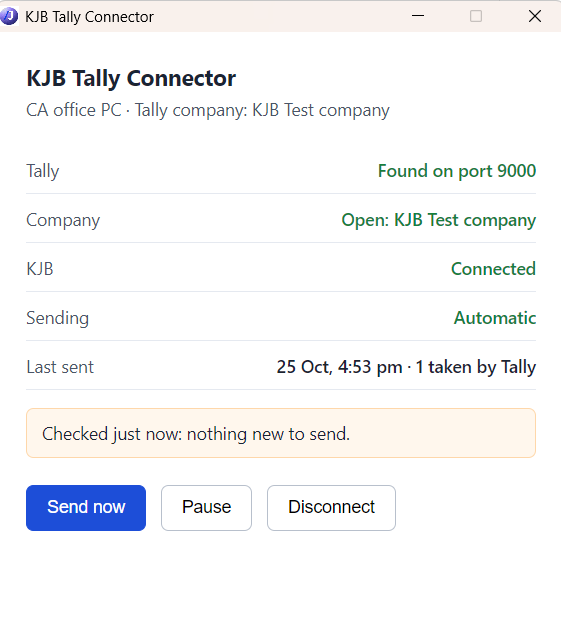
- Send now sends straight away. If Tally or the company is not open, or nothing new is waiting, the Connector says so.
- Pause stops sending until you choose Resume. KJB still shows the computer as connected.
- Disconnect forgets the connection on this computer. To connect again, ask KJB for a new code. Disconnecting the computer in KJB has the same effect: the Connector asks for a new code.
- If Tally is closed, nothing is lost: the Connector sends the missed days the next time Tally is open.
When to send
| Choice | What happens |
|---|---|
| After Day Close each night | A day is sent once its Day Close is done. |
| Every hour while Tally is open | Entries go every hour, today's included. |
If Tally is closed, KJB waits and sends the missed days the next time Tally is open. Choose Turn on automatic sending to finish.
On the Tally tab, Send automatically then shows whether Tally is connected, when entries were last sent, and how many vouchers Tally refused. Send now sends straight away instead of waiting.
Download file for your CA
Choose the From and To dates and Download Tally file. The file carries the new ledgers and suppliers first, then the vouchers. Your CA imports it in TallyPrime with Alt+O Import ▸ Transactions.
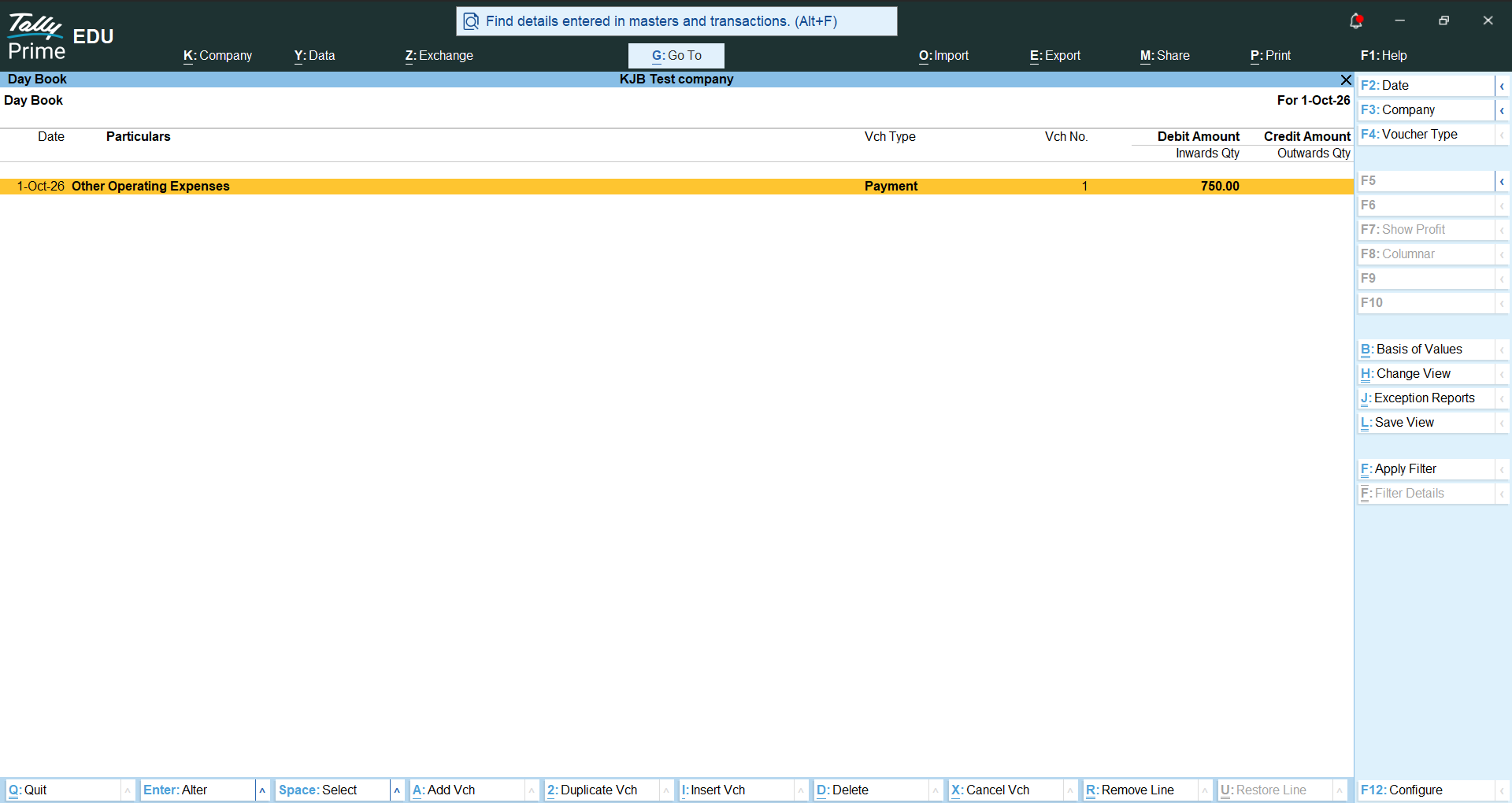
The file shows you nothing about what Tally refused: Tally lists those in its Exceptions report after the import. Ask your CA for it.
The Days list
Each day with entries shows how many vouchers it has and where they stand in Tally:
| In Tally | What it means | What to do |
|---|---|---|
| Not sent | Nothing from this day has gone to Tally yet. | Send it, or wait for automatic sending. |
| Sent | Every voucher of the day is in Tally. | Nothing. |
| In file | The day went out in a downloaded file. KJB cannot see whether your CA imported it. | Check with your CA. |
| N refused | Tally did not take N vouchers of the day. | Choose See why. |
| Changed since sent | A voucher of the day was edited, cancelled or deleted after it was sent. | Send the day again. KJB tells Tally to cancel or remove the old voucher. |
How says whether the day was Sent automatically or downloaded.
Vouchers Tally refused
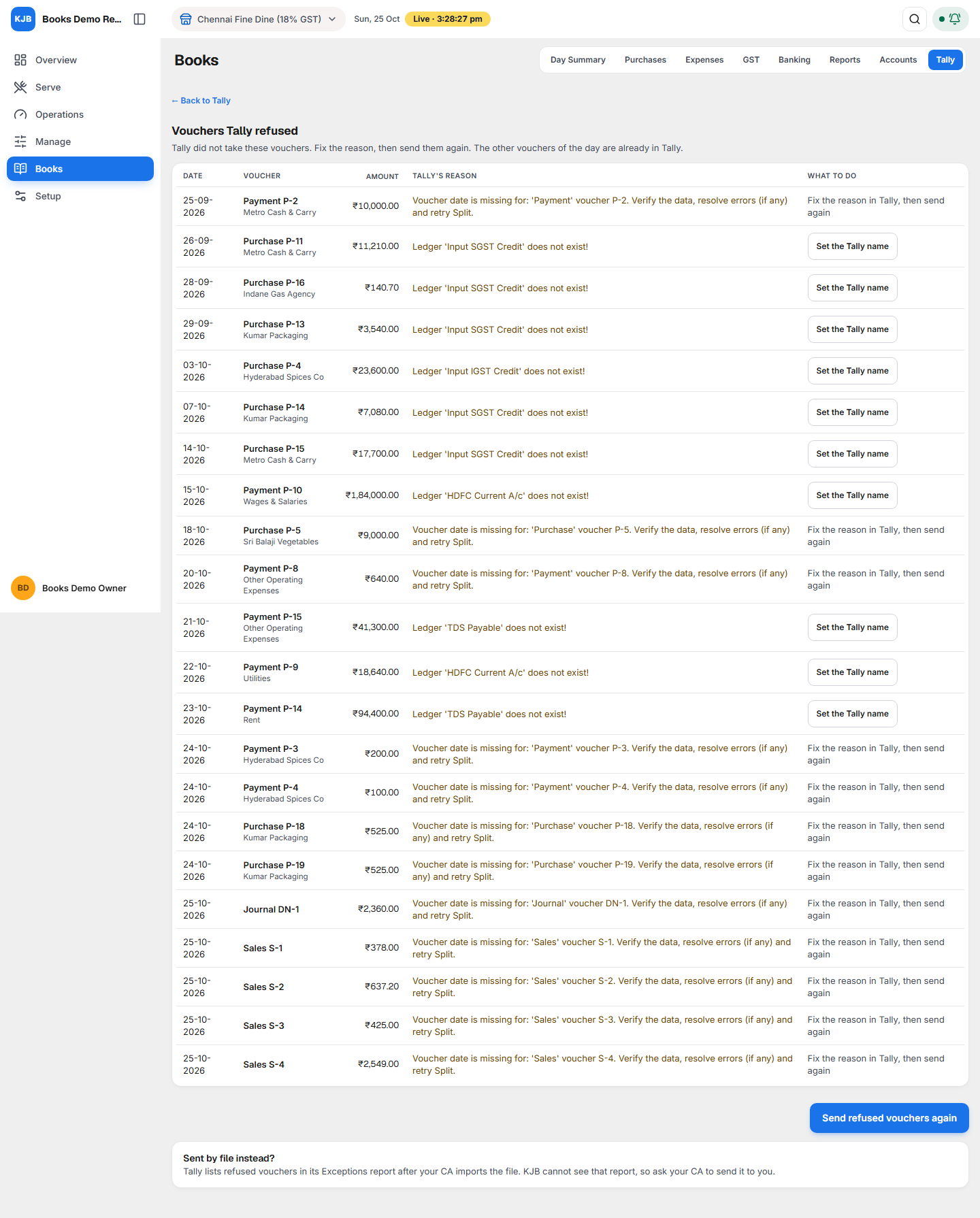
See why opens Vouchers Tally refused: each voucher Tally did not take, with the reason Tally gave and what to do. The other vouchers of that day are already in Tally.
| Reason given by Tally | What to do |
|---|---|
| Ledger '…' does not exist | Set the Tally name: the ledger needs a name, or your CA must create it. |
| Voucher date is before the books beginning date | Ask your CA to check the books beginning date in Tally. |
| Any other reason | Fix the reason in Tally, then send again. |
When the reason is fixed, choose Send refused vouchers again.
What reaches Tally
| From KJB | In Tally |
|---|---|
| A sale | A Sales voucher with its GST. |
| A purchase bill | A Purchase voucher. The bill is named with the supplier's invoice number, which also fills the Supplier Invoice No. and date. |
| A payment to a supplier | A Payment voucher that settles the bills you paid in KJB (Agst Ref), or stays an Advance or On Account, exactly as you recorded it. |
| An expense | A Payment voucher on the expense ledger. |
| A receipt, contra or journal entry, a Debit Note, a GST payment | The matching voucher type. |
| Opening balances | Not sent. Your CA enters them in Tally once. |
Tally numbers each voucher in its own series. KJB's voucher number stays with the voucher in KJB.
The rules in short
| Rule | Why |
|---|---|
| KJB never creates a GST, cash, card, bank, TDS or Retained Earnings ledger in Tally. | Your CA already has them; a second one would split the CA's tax or bank account. |
| A supplier is created with its GSTIN, registration type and state. | Tally needs the state to tell CGST + SGST from IGST. |
| Drafts stay out of the CA's books until approved. | The CA checks first. |
| An edited, cancelled or deleted voucher is corrected in Tally the next time the day is sent. | Both sets of books stay the same. |
What to do
- Ask your CA for the Tally company name and the names of the GST, cash, bank and TDS ledgers.
- Set Change company and the names under Ledger names in Tally.
- Decide with your CA: file, automatic sending, or both, and whether vouchers go as drafts.
- For automatic sending, set up the computer where Tally runs (the three steps above).
- Look at the Days list after each send. Clear every refused day with See why.