Change a price
Quick answer
Manage ▸ Menu Catalog ▸ open the item ▸ change the price ▸ Save changes.
What you'll accomplish
Update one or more saved prices for an existing menu item.
When to use this
Use this when the price of something on your menu changes — an ingredient got dearer, or you are running a different price for delivery.
To put something new on the menu instead, see Add a menu item. Menu Catalog is built for changing one item at a time; it is not where new items are created.
Who can do this
Managers and administrators.
Anyone else who can open the screen will find the save control unavailable. The page tells you so rather than failing when you try to save.
Before you begin
Know which price you are changing. An item has four, and they are separate amounts: the base price and one each for takeaway, delivery and online. Changing one leaves the other three exactly as they were. If you want a rise to apply everywhere, you have to change each one.
Steps
-
Open Manage ▸ Menu Catalog. Your items are listed, and you can search by name or narrow the list to one category.
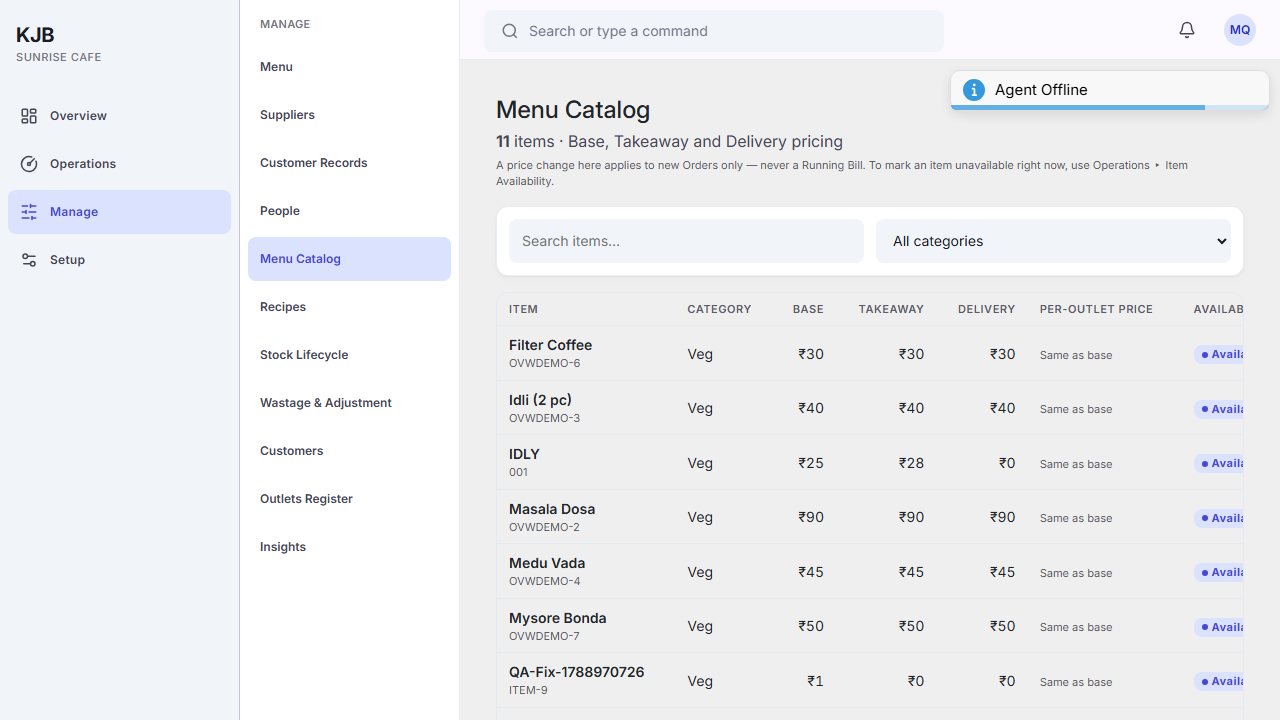 2. Open the item you want to reprice.
3. Change the price you need — Base price, Takeaway price, Delivery price
or Online price.
4. Select Save changes.
2. Open the item you want to reprice.
3. Change the price you need — Base price, Takeaway price, Delivery price
or Online price.
4. Select Save changes.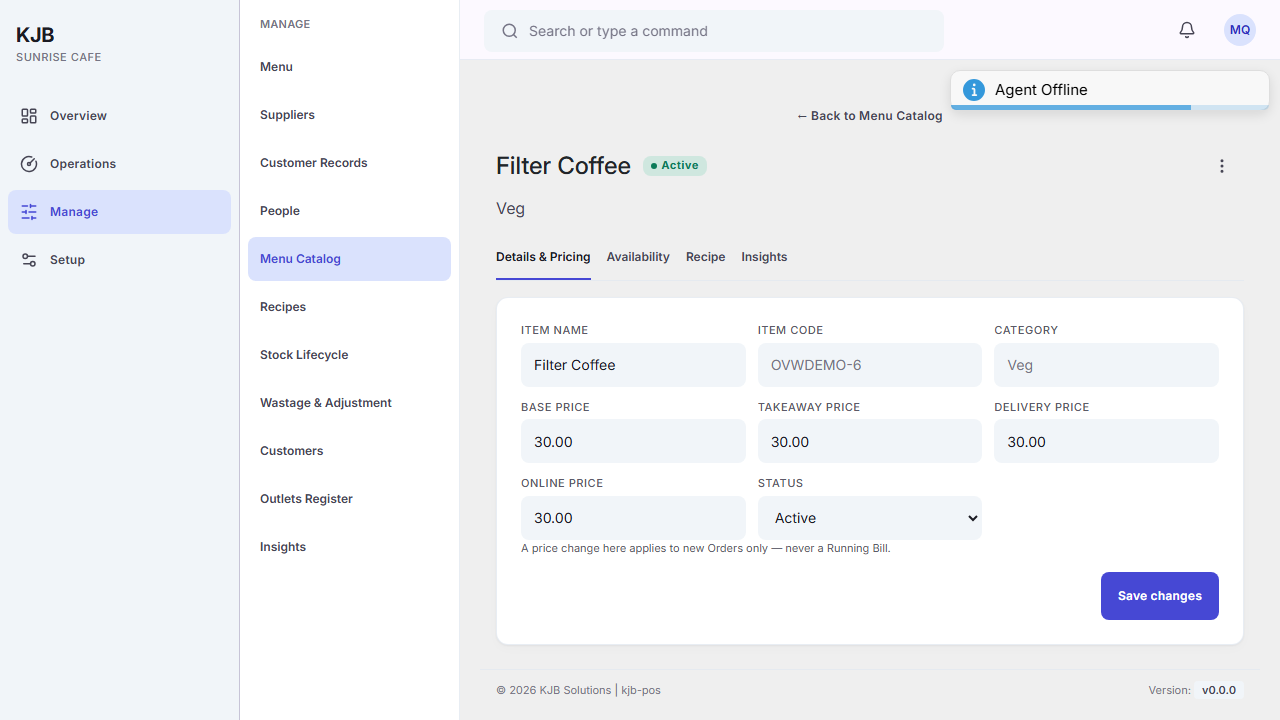
Expected result: a confirmation appears and the item shows the saved price.
Things to know
A price change applies to new orders only — never to a bill already running. The screen says so itself. If a table is mid-service, their bill keeps the price it opened with; the new price applies to orders taken from now on.
To stop selling something right now, this is the wrong screen. A price change will not pull an item off an order in progress. Operations ▸ Item Availability is the control for making an item unavailable immediately.
Item code and Category cannot be changed here. They are shown so you can confirm you have the right item, but they are fixed on this screen.
Only the price you edit changes. This screen saves the item as you left it, so a takeaway rise does not quietly move the base price.
To hold an item back, use Status. Status is the field for taking something off the menu; it is a clearer signal than editing prices, and it is reversible.
If something goes wrong
The save control is unavailable. Your account cannot change menu items. Ask a manager.
Someone says the new price hasn't taken effect. Check which of the four prices you edited. They are separate fields, so a change to the takeaway price leaves the base price as it was.
Related
- Add a menu item — putting something new on the menu
- Menu items — what a menu item is, and how it differs from a stock item