Receipts and Payments
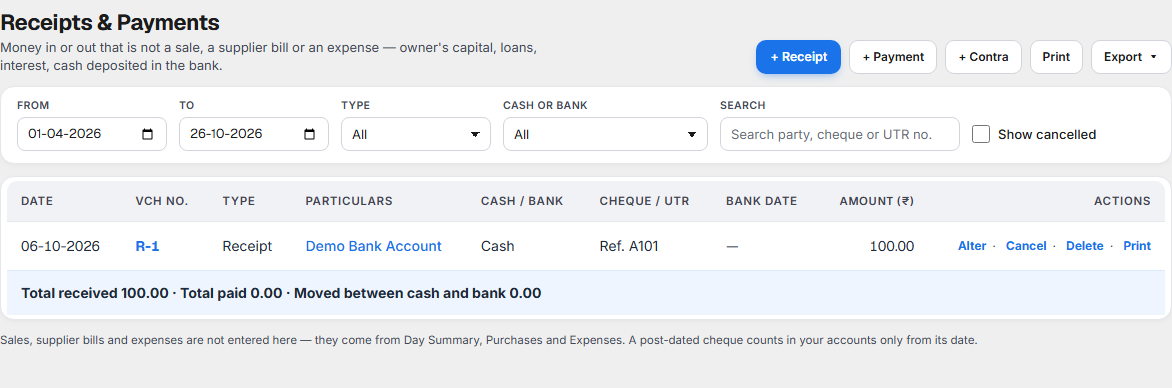
Receipts & Payments is where you enter money that comes into or goes out of your cash and bank accounts and is not a sale, a supplier bill or an expense: the owner's capital, a loan, interest from the bank, cash you deposit in the bank. It shows:
- every Receipt, Payment and Contra of the outlet for the period you choose,
- the cheque or UTR number of each, and the day the bank cleared it,
- the total received, the total paid and the total moved between cash and bank.
Open it from Books ▸ Banking ▸ Receipts & Payments. Your bank accounts must first be added in Chart of Accounts; see Bank accounts.
A voucher is one entry in your accounts. These three kinds are used here:
| Voucher | Number | Use it when | Dr | Cr |
|---|---|---|---|---|
| Receipt | R-1, R-2… | Money comes in that is not a sale: capital the owner brings in, a loan taken, interest. | Cash or bank | The ledger it came from |
| Payment | PY-1, PY-2… | Money goes out that is not a supplier bill or an expense: repaying a loan you took. | The ledger it was paid to | Cash or bank |
| Contra | C-1, C-2… | Money moves between your own cash and bank accounts: cash deposited, cash withdrawn, bank to bank. | The account it moves to | The account it moves from |
The number is shown on the form before you save, for example No. PY-44.
Why it matters for filing
Income tax (ITR). Your Balance Sheet and Profit & Loss are made from the vouchers in your accounts. A loan you took, capital you brought in and interest you earned belong in them. If they are missing, your bank balance in Books will not match your bank, and your return starts from a wrong figure.
GST. No GST is worked out on a receipt, a payment or a contra. Sales come from Day Summary, supplier bills from Purchases and expenses from Expenses. Do not enter them here, or they are counted twice.
Cash limits. The Income-tax Act 2025 has been in force since 1 April 2026 (section 1(3)). It limits cash in these ways:
| Rule | Limit | What it means for you | Section |
|---|---|---|---|
| Cash payment | ₹10,000 to one person in a day | A payment above this that is not made by bank or online mode is not allowed as a deduction. For a goods carriage the limit is ₹35,000. | 36(4), 36(6) |
| Cash receipt | ₹2,00,000 or more from one person | You may not take this in cash in a day, in one transaction, or for one event. A penalty applies. | 186, penalty 451 |
| Loans and deposits | ₹20,000 or more | A loan or deposit you take, or repay, must go through a bank or electronic mode. | 185, 188 |
Books does not stop you at these limits. Pay and receive through the bank and the limits do not trouble you.
Tax audit. Under section 63(1) a tax audit is needed when your business receipts are over ₹1 crore. The limit is ₹10 crore when your cash receipts and your cash payments are each within 5% of the total. Money that goes through the bank helps you stay inside that 5%.
What each part of the screen shows
Buttons and filters

| Control | What it does |
|---|---|
| + Receipt, + Payment, + Contra | Open a new voucher of that kind. A button you cannot use is not shown; ask an administrator for access. |
| Prints the list as it is on screen, with the period and the filters you chose. | |
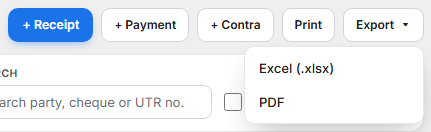
| Export | Downloads the list as Excel (.xlsx) or PDF, with the three totals at the end. |
| From and To | The period. It starts at the beginning of the financial year and ends today. |
| Type | All, Receipt, Payment or Contra. |
| Cash or bank | Only the entries of one cash or bank account. |
| Search | Type a party, a cheque number or a UTR. |
| Show cancelled | Shows cancelled vouchers as well. They are hidden until you tick it. |
The register
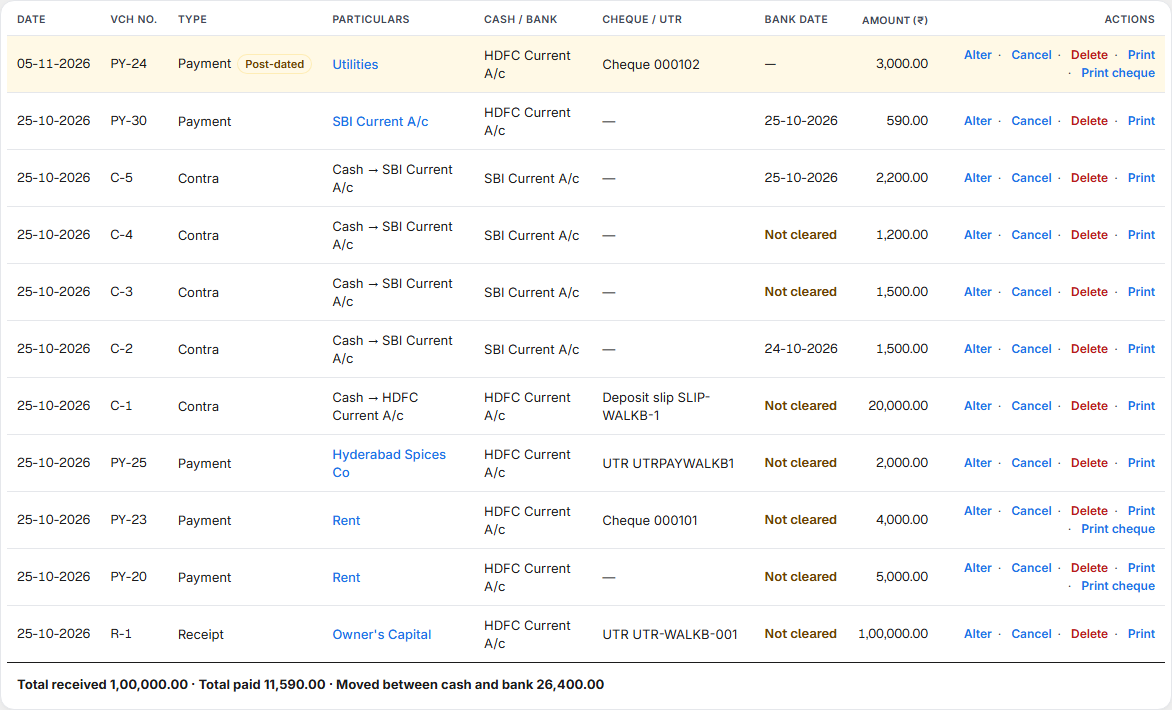
One row for each voucher.
| Column | What it shows |
|---|---|
| Date, Vch No. | The voucher date and its number. |
| Type | Receipt, Payment or Contra. Post-dated is added for a cheque that is not yet due. Cancelled is added for a cancelled voucher. |
| Particulars | The party ledger. Select it to open that Ledger. For a contra it reads From → To, for example Cash → HDFC Current A/c. |
| Cash / Bank | The cash or bank account. For a contra, the bank side. |
| Cheque / UTR | Cheque 000101, UTR HDFC2610…, DD… or Deposit slip…. |
| Bank date | The day the bank cleared it, once you match it in Bank Reconciliation. Not cleared until then. A dash for cash, for a cancelled voucher and for a post-dated cheque that is not yet due. |
| Amount (₹) | The amount of the voucher. |
Under the table: Total received, Total paid and Moved between cash and bank. A contra is only a move between your own accounts, so it is not income or expense.
On every row, at the right:
| Link | What it does |
|---|---|
| Alter | Opens the voucher to change it. Not shown on a cancelled voucher. |
| Cancel | Cancels the voucher; it stays in the list. |
| Delete | Removes the voucher from the lists. |
| Prints the voucher: a Receipt Voucher, a Payment Voucher or a Contra Voucher. Not shown on a cancelled voucher. | |
| Print cheque | On a payment by cheque: opens the cheque ready to print. See Cheques. |
Entering a Receipt or a Payment
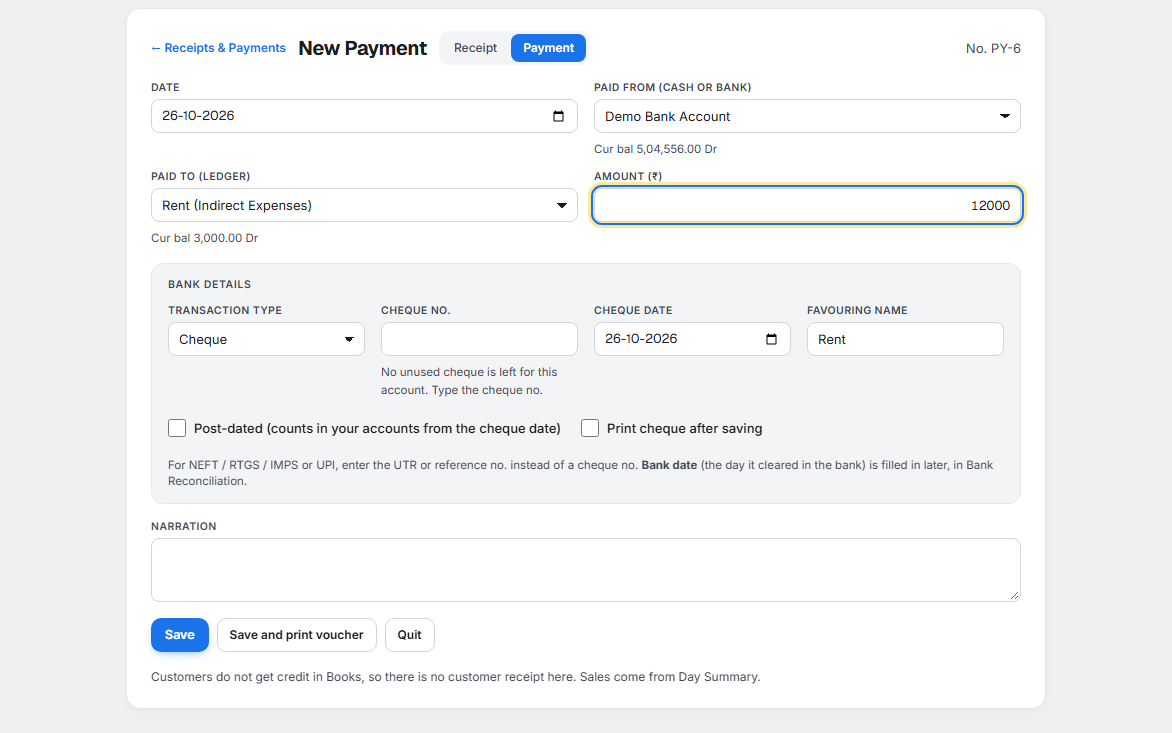
Select + Receipt or + Payment. You can switch between Receipt and Payment at the top of a new voucher.
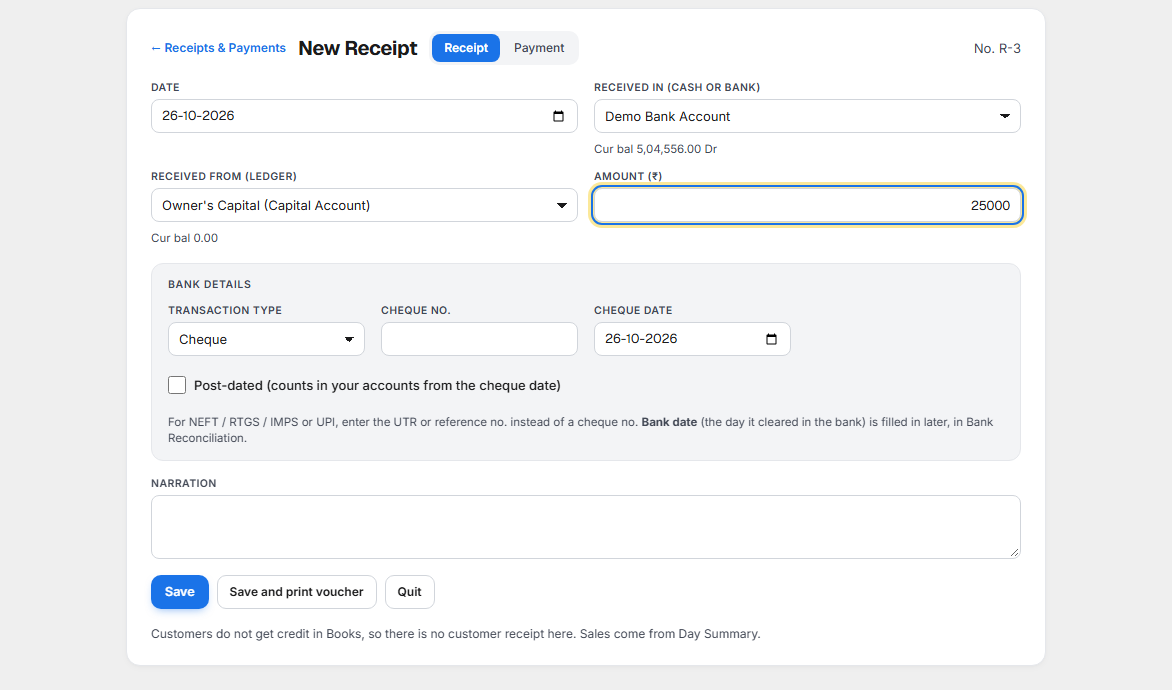
| Field | What to enter |
|---|---|
| Date | The day it happened. |
| Received in (cash or bank) or Paid from (cash or bank) | Cash or one of your bank accounts. Under it, Cur bal shows its balance now, for example Cur bal 2,55,915.00 Dr. |
| Received from (ledger) or Paid to (ledger) | The other side: owner's capital, a loan, interest income. The group is shown in brackets after each name. |
| Amount (₹) | The amount. |
| Narration | A note to remember it by. |
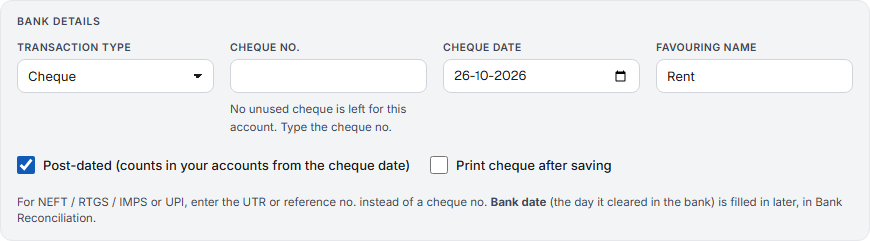
The account and the ledger must be different. When you choose a bank account, a Bank details section appears:
| Field | What it is |
|---|---|
| Transaction type | Cheque, NEFT / RTGS / IMPS, UPI, Demand Draft or Others. |
| Cheque no. | The number of the instrument. It reads UTR / reference no. for NEFT, RTGS, IMPS and UPI, DD no. for a demand draft and Reference no. for Others. Enter the UTR here so the bank line can be matched to the voucher. |
| Cheque date | For a cheque only. It starts as the voucher date. |
| Favouring name | For a payment by cheque or demand draft. It starts as the ledger's name; change it if the cheque is to be written to another name. |
| Post-dated (counts in your accounts from the cheque date) | For a cheque only. See below. |
| Print cheque after saving | For a payment by cheque. After Save the cheque opens ready to print. |
Cash needs none of these. The Bank date is not entered here; it is filled in later, when you match the voucher in Bank Reconciliation.

Cheque numbers
When you pay by cheque from a bank account that has a cheque book, Books fills in the next unused cheque number and shows, for example, 000104 is the next unused cheque (22 left in the book). You can change it. Save stays off until a number is there. If the cheque book has no unused cheque left, it says No unused cheque is left for this account. Type the cheque no. Add cheque books in Bank accounts.
Post-dated cheques
A cheque you write or receive with a later date is post-dated. Tick the box and enter a Cheque date after today. The voucher counts in your accounts from the cheque date, not from the day you wrote it. Until then the cheque is in the Post-dated count on the Cheques tab, and the register shows it, marked Post-dated, when the To date is after the cheque date.
| Message | What it means |
|---|---|
| Only a cheque can be post-dated. | The transaction type is not Cheque. |
| Enter the cheque date of a post-dated cheque. | The cheque date is empty. |
| A post-dated cheque needs a cheque date after today. | The cheque date is today or earlier. |
Entering a Contra
Select + Contra. A contra is money moving between your own cash and bank accounts. It is not income or expense, so it never goes through a ledger such as Rent or Capital. A payment or receipt never goes to Cash or to a bank. That is a contra.
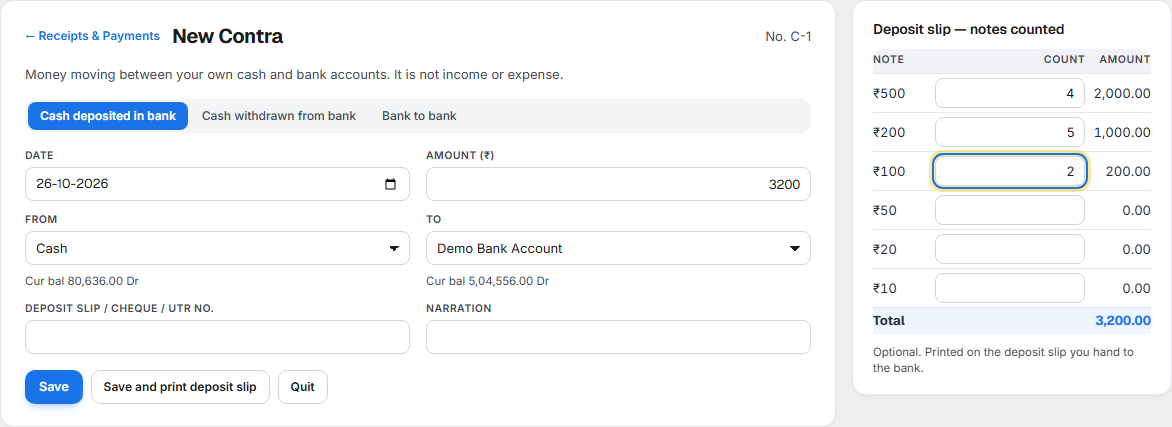
Choose the kind first:
| Kind | From | To |
|---|---|---|
| Cash deposited in bank | Cash | A bank account |
| Cash withdrawn from bank | A bank account | Cash |
| Bank to bank | A bank account | Another bank account |
Then enter Date, Amount (₹), From, To, the Deposit slip / cheque / UTR no. and a Narration. From and To must be different accounts.
Deposit slip, notes counted
For Cash deposited in bank, the panel Deposit slip — notes counted lets you count the notes you are taking to the bank: ₹500, ₹200, ₹100, ₹50, ₹20 and ₹10. It adds them up in Total. The count is optional. If the notes do not add up to the amount, it says The notes add up to … but the amount is …, and you can still save.
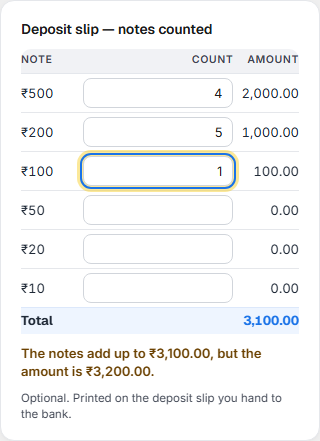
Save and print deposit slip prints the slip to hand to the bank, with the notes, the amount in words, and a place for the depositor's and the bank's signatures.
Alter, Cancel and Delete
Each is recorded in the Edit Log, so your accountant can see who changed what.
| Action | What happens |
|---|---|
| Alter | Opens the voucher with the same number. Change it and select Save. |
| Cancel | The voucher stays in the list as Cancelled, and its effect on your accounts is reversed. If it was matched with a bank line, the match is undone. |
| Delete | The voucher is removed from the lists, and its effect on your accounts is reversed. If it was matched with a bank line, the match is undone. |
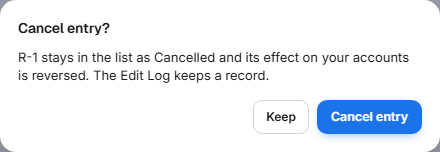
A voucher dated before your Year Close date cannot be added, altered, cancelled or deleted: No entries are allowed before … (the Year Close date).
Printing a voucher
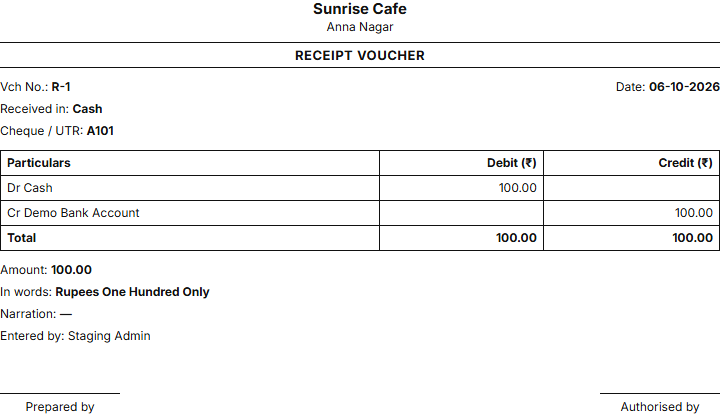
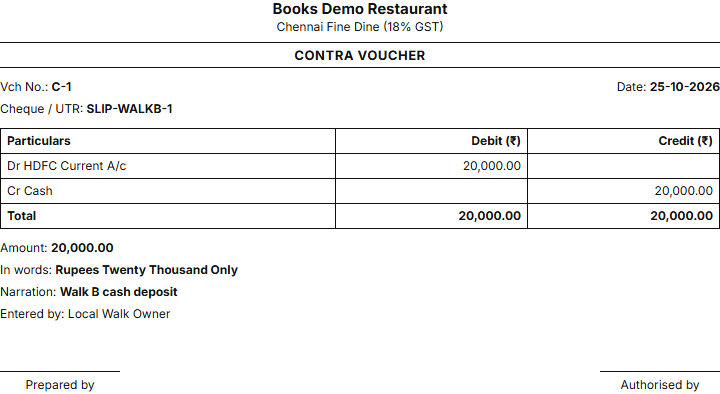
Print on a row, or Save and print voucher on the form, prints a Receipt Voucher, Payment Voucher or Contra Voucher. It shows the voucher number and date, the cash or bank account, the transaction type, the cheque or UTR, the favouring name, each Dr and Cr line, the amount in words and the narration, with Prepared by and Authorised by at the foot.
What to do when something needs attention
| You see | What it means | What to do |
|---|---|---|
| Not cleared for a long time | The bank has not paid it, or you have not matched it. | Open Bank Reconciliation and match it to the bank line. |
| The cash or bank account and the ledger must be different. | You chose the same account on both sides. | For money between your own accounts use a Contra. |
| A sale, a supplier bill or an expense was entered here | It is counted here and again in its own screen. | Cancel it here. Enter it in Day Summary, Purchases or Expenses. |
| You cannot find a voucher | The period, the type or Show cancelled hides it. | Widen From and To, set Type to All, and tick Show cancelled. |
| No Alter, Cancel or Delete on an old voucher | It is before your Year Close date, or the voucher is cancelled. | See Year Close. |
| A button such as + Payment is missing | You do not have access to it. | Ask an administrator to give you access. |
Related
- Bank Reconciliation: match these vouchers to your bank statement.
- Cheques: the register of cheques and cheque printing.
- Bank accounts: add a bank and its cheque books.
- Chart of Accounts and Day Book, Ledger and Journals.