Purchases
Purchases answers four questions: what you bought from suppliers, what you owe them, what you have paid, and the GST credit you can claim. Open it from Books, the Purchases tab. It has three sub-tabs:
- Purchase Bills — the supplier bills you have entered, and the GST credit on each.
- Payments — the money you paid to suppliers, and which bills it settled.
- Bills Payable — what you owe each supplier today, by how old the bill is.
Throughout, the supplier is called a party (a Sundry Creditor). A bill is a Purchase Voucher.
Why it matters for filing
For your income tax return (ITR): purchases are expenses. They lower your taxable profit. A bill that is not entered here is an expense your return does not show.
For GST: at an outlet that charges 18% GST, the GST you paid on purchases is ITC (input tax credit). It reduces the GST you pay. You can claim it only when:
- the supplier has reported your bill, which GSTR-2B shows, and
- you have paid the supplier within 180 days of the bill date.
Purchases tracks both for you. A 5% restaurant (stand-alone) gets no ITC, so the ITC parts of this page are hidden there. See The rules in short.
Purchase Bills
The list

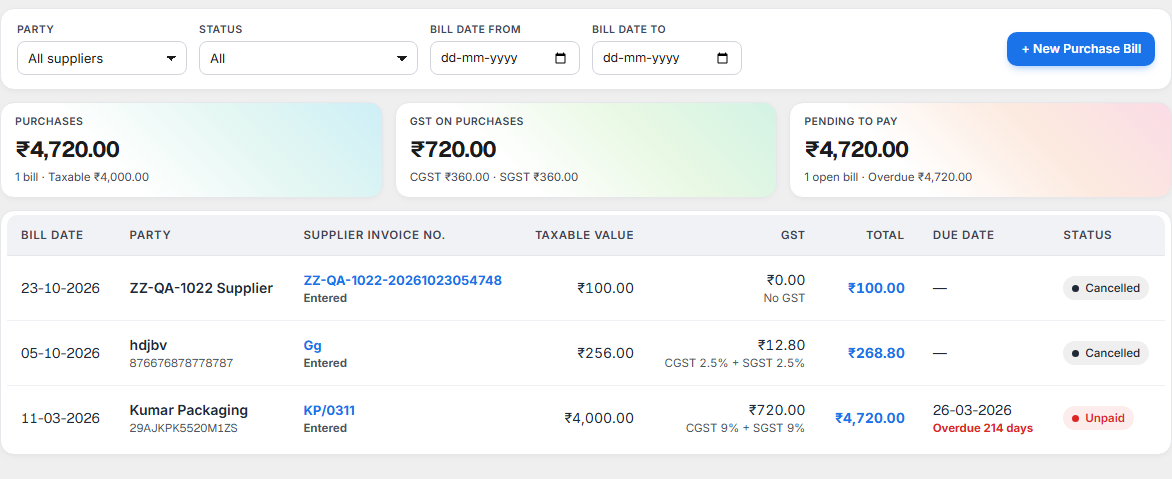
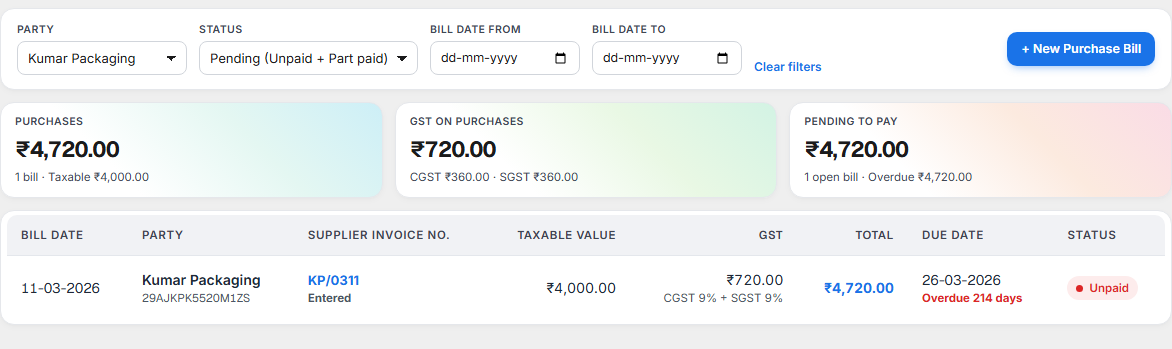
Filter by Party, Status, ITC (GSTR-2B) and the bill dates. In Status, Pending (Unpaid + Part paid) shows everything you still owe money on.
The cards above the list add up the bills you see: Purchases, GST on purchases, ITC claimable (in GSTR-2B) (18% outlets only) and Pending to pay.
| Column | What it shows |
|---|---|
| Bill date | The date on the supplier's bill. |
| Party | The supplier, with the GSTIN under the name. |
| Supplier Invoice No. | The number on the supplier's bill. |
| Taxable Value | The amount before GST. |
| GST | The tax, split as CGST + SGST or IGST. |
| Total | Taxable value plus GST. A part-paid bill also shows the Pending amount, and a Debit Note if there is one. |
| Due date | When you should pay. A late bill says Overdue N days. |
| Status | Unpaid, Part paid, Paid or Cancelled. |
| ITC (GSTR-2B) | Whether you can claim the GST on this bill. Only at 18% outlets. |
The ITC (GSTR-2B) column
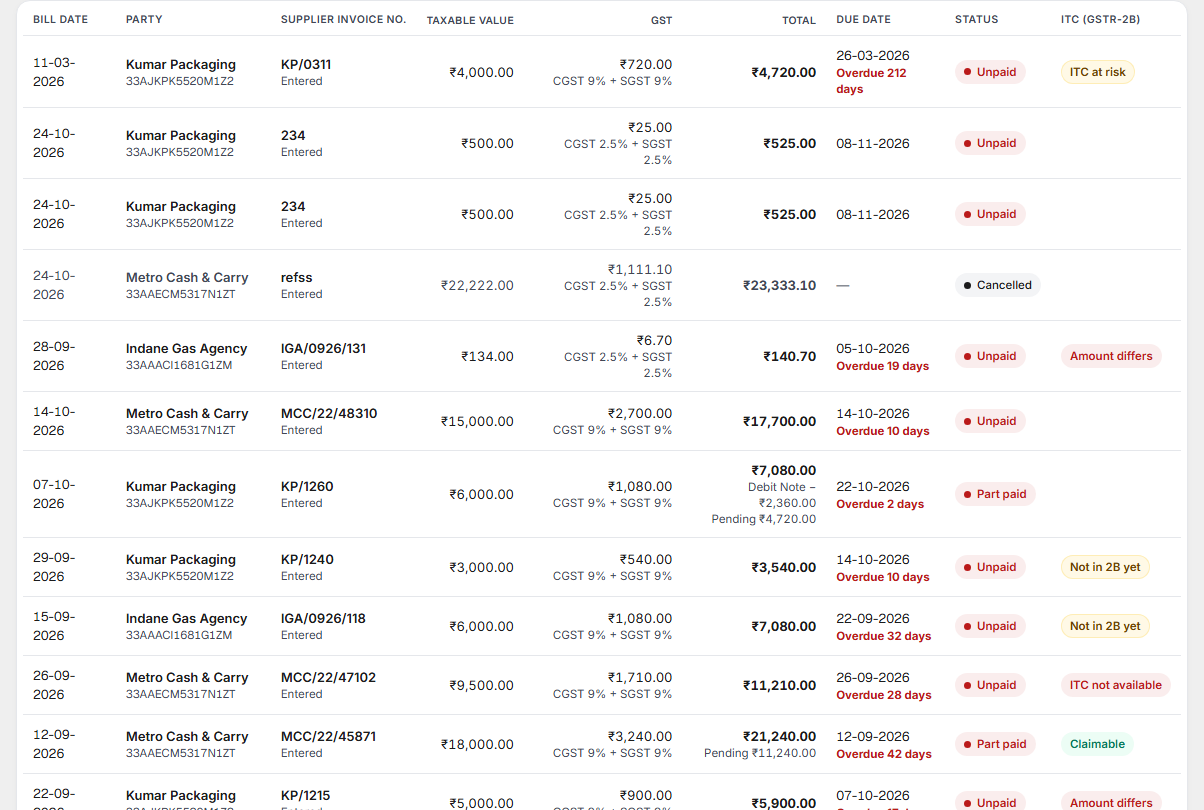
In the ITC (GSTR-2B) column you may see:
| It says | What it means |
|---|---|
| Claimable | The supplier reported this bill and the figures match. You can claim the ITC. |
| Amount differs | The supplier reported the bill, but the GST amount is not the same as yours. |
| Not in 2B yet | You uploaded GSTR-2B, but this bill is not in it. The supplier may not have reported it yet. |
| ITC not available | The ITC on this bill cannot be claimed. |
| ITC at risk | The bill is still not fully paid 180 days after the bill date. See ITC at risk. |
| No GST | The bill has no GST, so there is no credit. |
| (blank) | Nothing to show yet, for example before any GSTR-2B is uploaded. |
Entering a bill
Select + New Purchase Bill. The form opens. ← Back to Purchase Bills returns to the list.
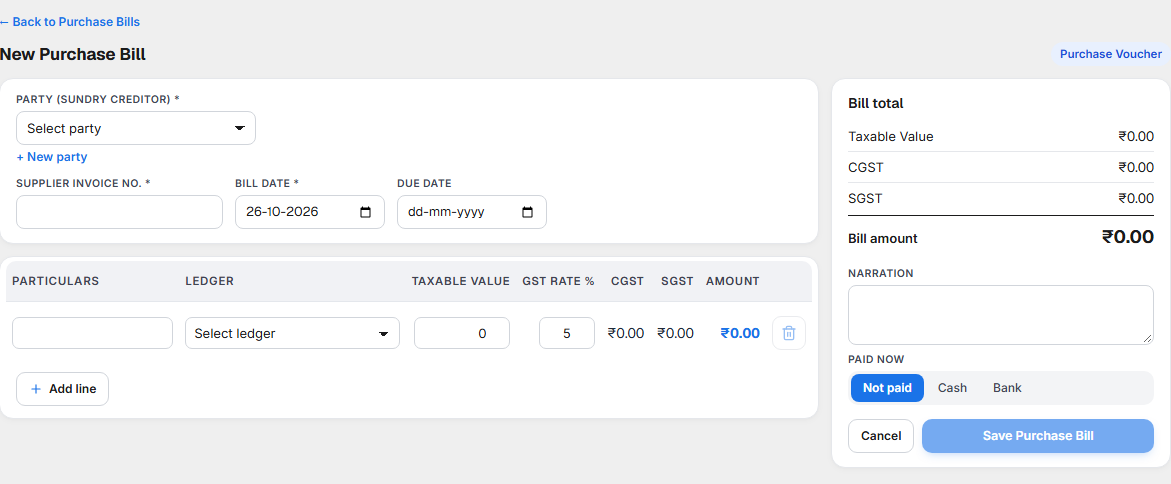
| Field | What to enter |
|---|---|
| Party (Sundry Creditor) | The supplier. Select + New party to add one without leaving the form. |
| Supplier state | Fills in from the party. It decides the tax type. |
| Supplier Invoice No. | The number on the supplier's bill. |
| Bill date | The date on the supplier's bill. |
| Due date | Fills in from the party's credit days. You can change it. |
| Tax type | CGST + SGST when the supplier is in the same state as your outlet, IGST when in another state. You do not choose it. |
| Particulars, Ledger, Taxable Value, GST rate % | One line for each item or expense. Add more with Add line. |
| Paid now | Not paid, Cash or Bank. Cash or Bank saves the bill and its payment together. |
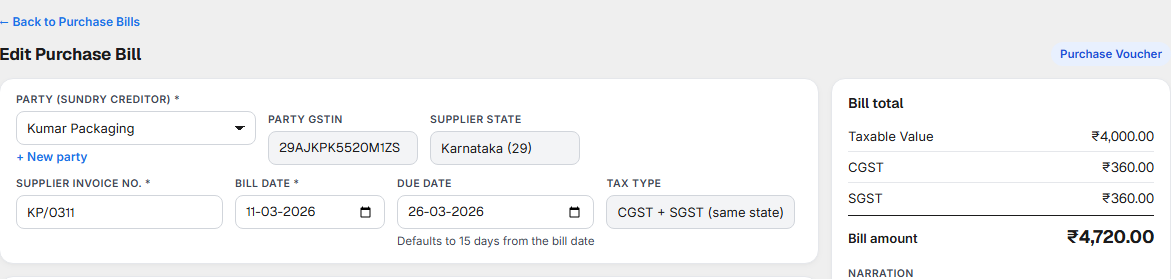
The Bill total card on the right adds up the taxable value, CGST, SGST and the bill amount. Its ITC line says whether the outlet can claim credit.
The bill details
Select a bill to see its details.
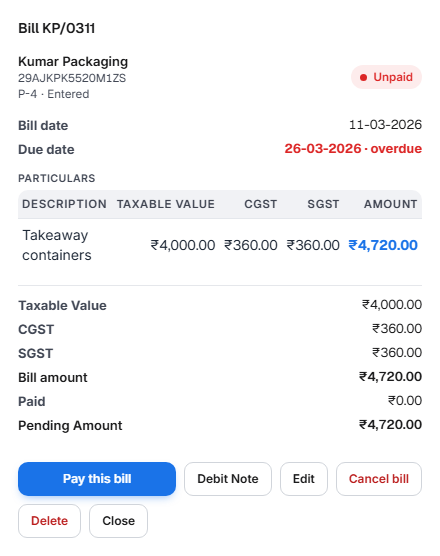
| Button | What it does |
|---|---|
| Pay this bill | Opens a payment for this bill. |
| Debit Note | Records goods sent back or a reduction agreed with the supplier. See Debit Note. |
| Edit | Changes the bill. Only an unpaid bill can be edited. |
| Cancel bill | The bill stays in the list as Cancelled, and its effect on your accounts is reversed. |
| Delete | The bill is removed from the lists. |
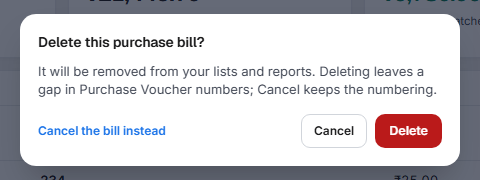
Delete leaves a gap in your Purchase Voucher numbers. The law (CGST Rule 56(8)) needs a record of what was deleted, so a log of the deletion is kept. If you only want the bill out of your figures, select Cancel the bill instead. The number stays, so there is no gap.
When Edit, Cancel and Delete are refused:
| The bill | Why it is refused | What to do |
|---|---|---|
| Has a payment | The payment would no longer match the bill. | Cancel the payment first. |
| Has a Debit Note | The Debit Note is tied to the bill. | Cancel the Debit Note first. |
| Came from a stock receipt | The stock receipt is where the purchase happened. | Change it from the stock receipt. |
| Falls in a closed period | A closed period is locked. | See Period Close. |
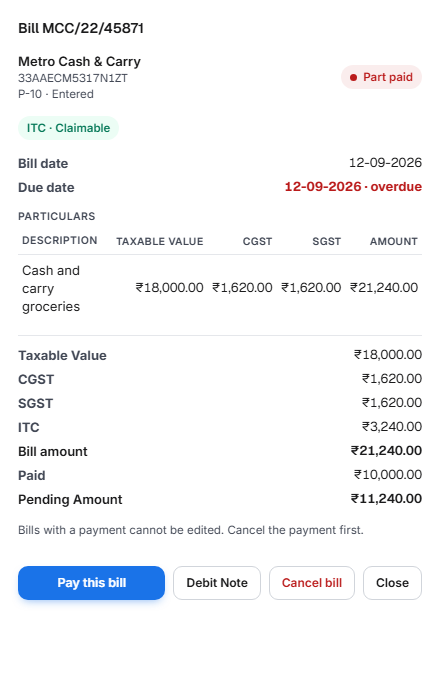
Debit Note
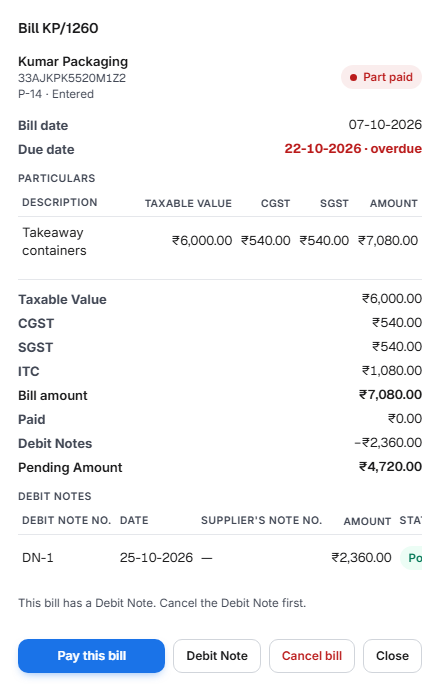
A Debit Note is for goods you sent back, or a reduction the supplier agreed to. It lowers what you owe.
Example. A bill is ₹10,000 + ₹1,800 GST = ₹11,800. You send back goods worth ₹2,000 + ₹360 GST = ₹2,360. Now you owe ₹9,440.
| Taxable value | GST (18%) | Total | |
|---|---|---|---|
| The bill | ₹10,000 | ₹1,800 | ₹11,800 |
| Debit Note | ₹2,000 | ₹360 | ₹2,360 |
| You now owe | ₹8,000 | ₹1,440 | ₹9,440 |
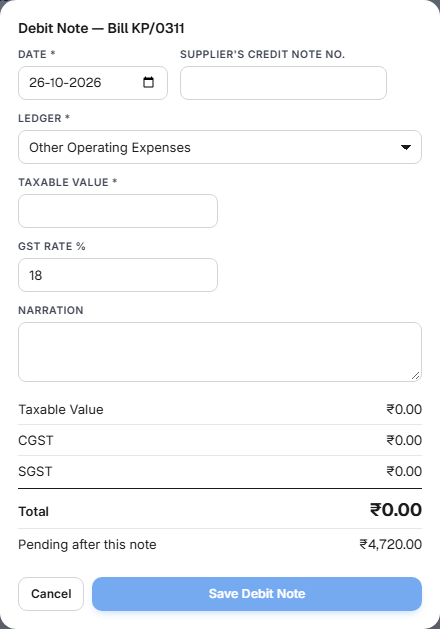
The screenshot shows the dialog for bill KP/0311, before anything is entered.
- It lowers the Pending Amount and what you owe at once.
- It has its own number, DN-1, DN-2 and so on.
- It shows in the bill's details and in the party's statement, under Debit.
- At an 18% outlet, it lowers your ITC only when the supplier's credit note appears in your uploaded GSTR-2B. KJB matches it by the supplier's credit note number. So enter the Supplier's Credit Note No. in the dialog.
Match GSTR-2B
(18% outlets only.)
Why. You can claim ITC only on bills your supplier has reported. GSTR-2B is the statement that shows what your suppliers reported (CGST Act section 16(2)(aa) and Rule 36(4)).
How:
- On the GST portal, go to Returns ▸ GSTR-2B and download the JSON file for the month.
- In Purchase Bills, select Match GSTR-2B and upload the file.
- KJB matches each bill to the file and shows the result in the ITC (GSTR-2B) column.
| Result | What it means | What to do |
|---|---|---|
| Claimable | Reported and matching. | Nothing. |
| Amount differs | Reported, but the GST is different. | Check your bill against the supplier's. Ask the supplier to correct their return, or correct your bill. |
| Not in 2B yet | Not reported by the supplier. | Ask the supplier to report it. Upload the next month's file. |
| In 2B but not in your books | The supplier reported a bill you never entered. | Select Add Purchase Bill to enter it. |
| ITC not available | The credit cannot be claimed. | Treat the GST as part of the cost. |
Reset clears an uploaded month, and every month after it, so you can upload the right file again. Use it when you uploaded the wrong file.
GSTR-3B claims ITC only on matched bills. Expense bills that carry a GST invoice are matched here too. They appear as Expense V-n, with Open expense to go to the expense.
Blocked credit
Some purchases never get ITC, even when the supplier reported them. The law lists them in CGST Act section 17(5): motor vehicles, building works and the like.
In Chart of Accounts, a ledger can be marked Ineligible for input credit. When a bill line is charged to such a ledger, its GST goes into the cost. The line on the form shows ITC: not eligible.
Food and groceries you use to cook what you sell are not blocked. You can claim ITC on them.
Payments
Select the Payments tab.
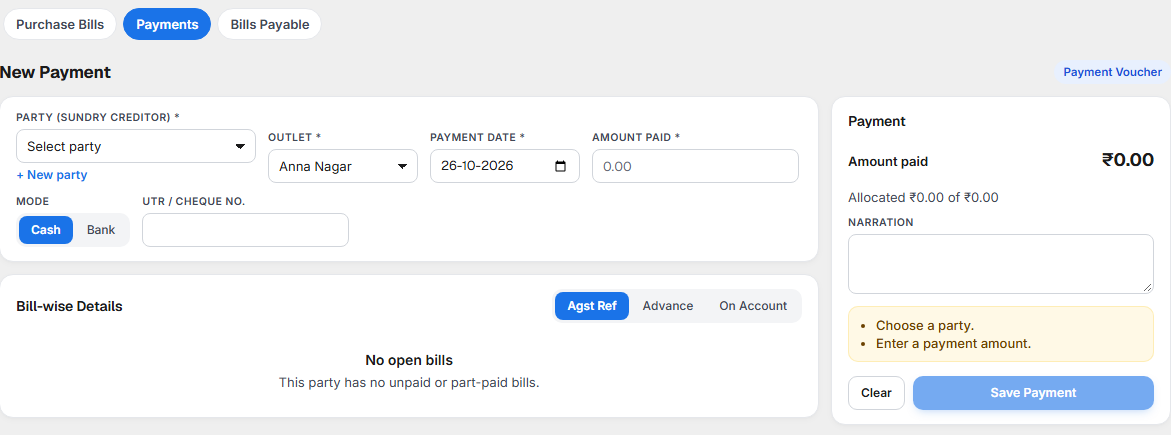
New Payment. Choose the Party (Sundry Creditor), or + New party. Then the Outlet, the Payment date and the Amount paid. Choose Cash or Bank. For a bank payment, enter the UTR / Cheque No..
Bill-wise Details
Bill-wise Details says what a payment is for. Choose one of three:
| Choice | What it means | Use it when |
|---|---|---|
| Agst Ref | Against named bills. You pick the bills and the amount for each. | You are paying one or more bills. |
| Advance | Paid before the bill has come. | The supplier wants money first. |
| On Account | Paid towards the party's total, not a particular bill. | You are paying a round sum and do not name a bill. |
Advance and On Account are different:
| Advance | On Account | |
|---|---|---|
| Is it for a bill? | For a bill that is still to come | For bills you do not name when you pay |
| Can you set it against a bill later? | Yes, with Set against a bill | Yes, with Set against a bill, once you know which bills it paid |
| Where it shows | The voucher shows Advance remaining | The voucher shows On Account remaining, and the On Account column in Bills Payable |
Why Agst Ref matters. Each bill's status (Unpaid, Part paid, Paid) is worked out from the payments made against that bill. A payment made Agst Ref is tied to the bill it names, so that bill's status is right. A payment made On Account is tied to the party, not to a bill, so no bill's status changes until you set it against the bills it paid. Use Agst Ref whenever you know the bill.
Payment Vouchers

Each payment is a voucher with its own number, PY-1, PY-2 and so on, the same number the Day Book shows. Against says what it was paid for: a bill number, Advance or On Account. Select a voucher to see it.
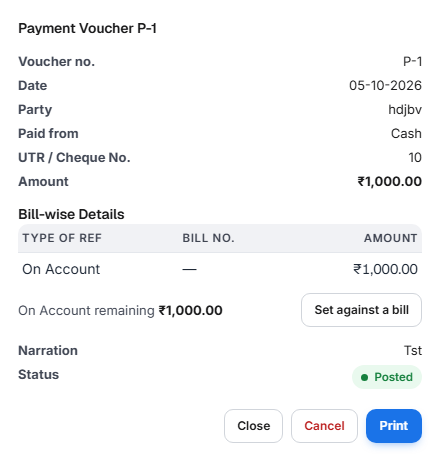
From the details you can Print the voucher (the amount is also written in words), or Cancel it. An advance that is not yet used has Set against a bill.
Bills Payable
Select the Bills Payable tab. It shows what you owe, party by party, by how late each bill is.
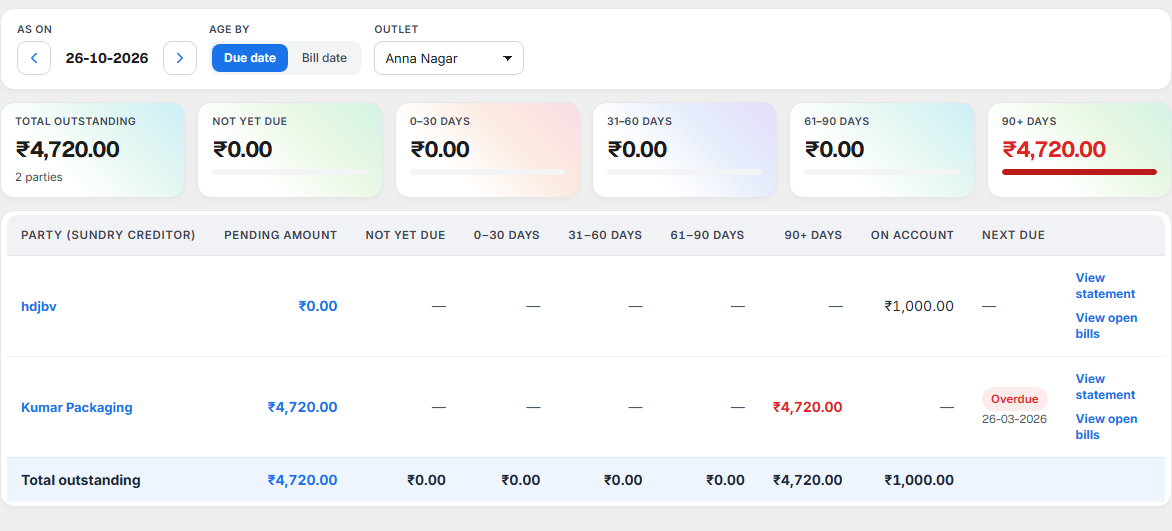
- As on is the date you want the figures for.
- Age by chooses whether lateness counts from the Due date or the Bill date.
- The columns are Not yet due, 0–30 days, 31–60 days, 61–90 days and 90+ days.
- For each party you see the Pending amount, the On Account amount and the Next due date.

View statement
View statement opens the party's statement: the Opening Balance, then each Purchase, Payment and Debit Note with Debit, Credit and a running balance in Cr (what you owe), then the Closing Balance.
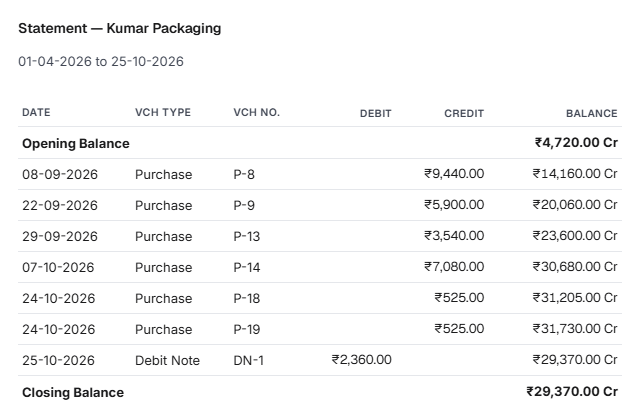
A purchase adds to what you owe (Credit). A payment or a Debit Note lowers it (Debit).
View open bills
View open bills opens Purchase Bills for that party, with Pending already selected.
ITC at risk
At an 18% outlet, a bill that is not fully paid 180 days after the bill date must have its ITC reversed in GSTR-3B (CGST Act section 16(2), second proviso, and Rule 37). When you pay the bill later, you can claim the credit again.
KJB warns you before that happens:
- the bill's ITC (GSTR-2B) column says ITC at risk, and its details say unpaid 180+ days;
- Bills Payable shows an ITC at risk card with the amount and the number of bills.
The rules in short
| Outlet | ITC | What you see |
|---|---|---|
| 5% restaurant (stand-alone) | No ITC. | The ITC parts of this page are hidden. |
| 18% specified premises (a hotel with a room tariff of ₹7,500 or more) | Yes, but only once the bill is in GSTR-2B. | The ITC (GSTR-2B) column, Match GSTR-2B and ITC at risk. |
| The supplier is | The tax on the bill is |
|---|---|
| In the same state as your outlet | CGST + SGST |
| In another state | IGST |
The supplier's state decides it, not the item.
What to do when something needs attention
| You see | What it means | What to do |
|---|---|---|
| Overdue N days in the Due date column | You have not paid by the due date. | Select Pay this bill, or open Bills Payable and pay the party. |
| ITC at risk | A bill is unpaid 180 days after its date. | Pay it before it reaches 180 days. If it has passed, the ITC is reversed in GSTR-3B and comes back when you pay. |
| Amount differs | Your GST is not the supplier's GST. | Compare with the supplier's invoice. Correct your bill, or ask the supplier to correct their return. |
| Not in 2B yet | The supplier has not reported the bill. | Ask the supplier. Upload next month's GSTR-2B. Do not claim the ITC until it shows Claimable. |
| A bill in GSTR-2B that is not in your books | You missed entering a bill. | Select Add Purchase Bill. |
| Edit, Cancel or Delete is refused | A payment, a Debit Note, a stock receipt or a closed period is in the way. | See the table in The bill details. |
Related
- Chart of Accounts — where a ledger is marked Ineligible for input credit.
- Day Book, Journal and Ledger — the account entries behind each bill and payment.
- Period Close — why a closed period refuses changes.
- Day Summary — the same kind of daily check, for sales.